Prerequisites for Importing Contacts
Before starting the import process, make sure to check this list:
- User Permissions: Only account Admin(s) can import contacts.
- File Format: The spreadsheet must be in CSV (.csv) format.
- File Size Limit: The CSV file should be under 30 MB. If it's larger, split it into smaller files.
- Spreadsheet format: The first row should NOT be blank! This should contain the title headers. Check sample spreadsheet HERE.
- Required fields: Each row must include at least one required field (Name, Email, or Phone).
- Clean the list: Delete empty rows/columns and duplicate records.
Import Contacts
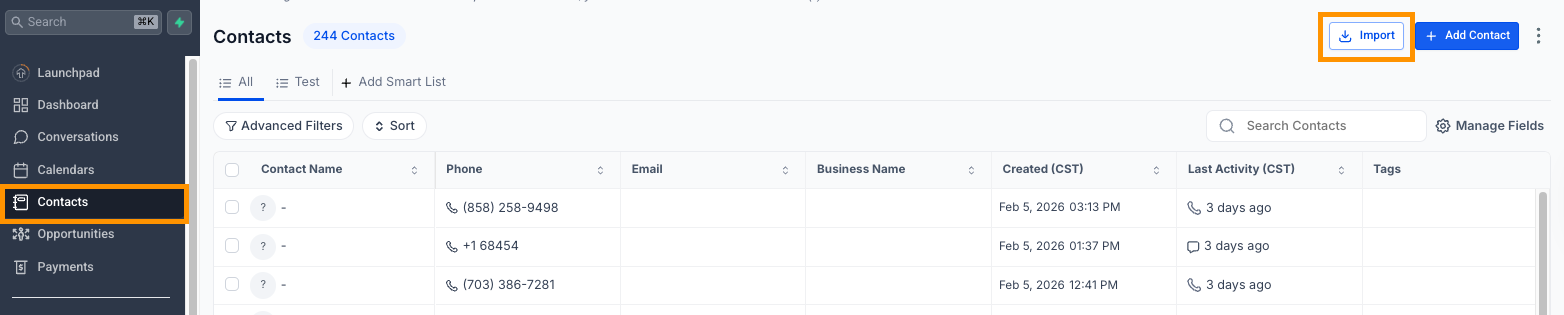
Step 1: Navigate to the Contacts Tab
From the left side menu, go to Contacts and click the Import Contacts button.
Step 2: Select What to Import
If you want the contacts to be added as an opportunity as well, select Opportunities (both selected). Otherwise, just select Contacts and they will only show up in the Contacts tab.
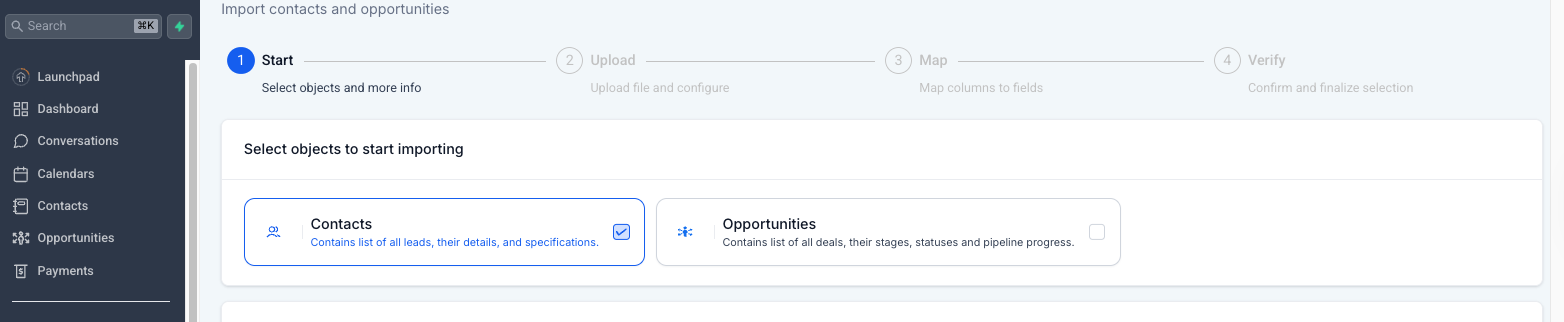
Note: Your CSV must include Opportunity-related columns (e.g., Pipeline, Stage, Status, Opportunity Name) for that data to be created correctly. You can leave fields unmapped if not needed.
Step 3: Upload Your CSV File
After selecting where to import, click Next, then upload your CSV file and select the correct import type depending on whether you’re adding new contacts or updating existing ones.
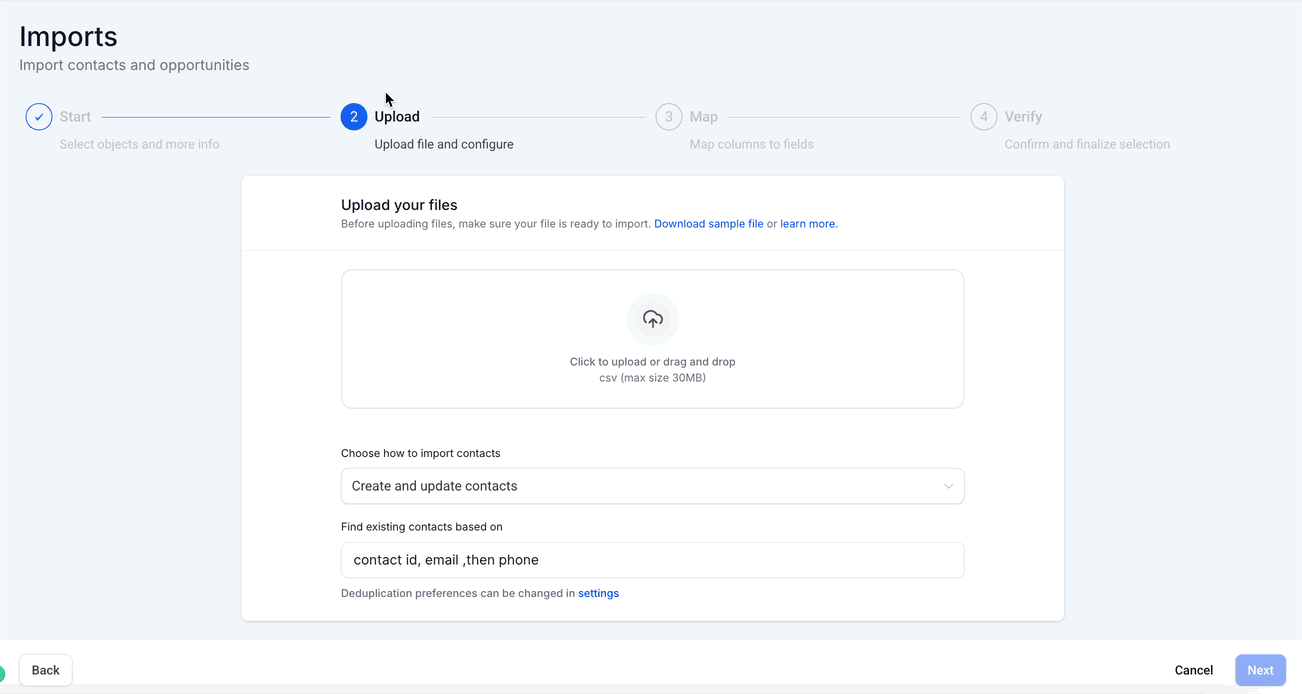
Note: When updating contacts, TheraSaaS checks for existing records based on the following order:
Contact ID → Email → Phone.
This matching order ensures accurate updates and avoids duplicates.
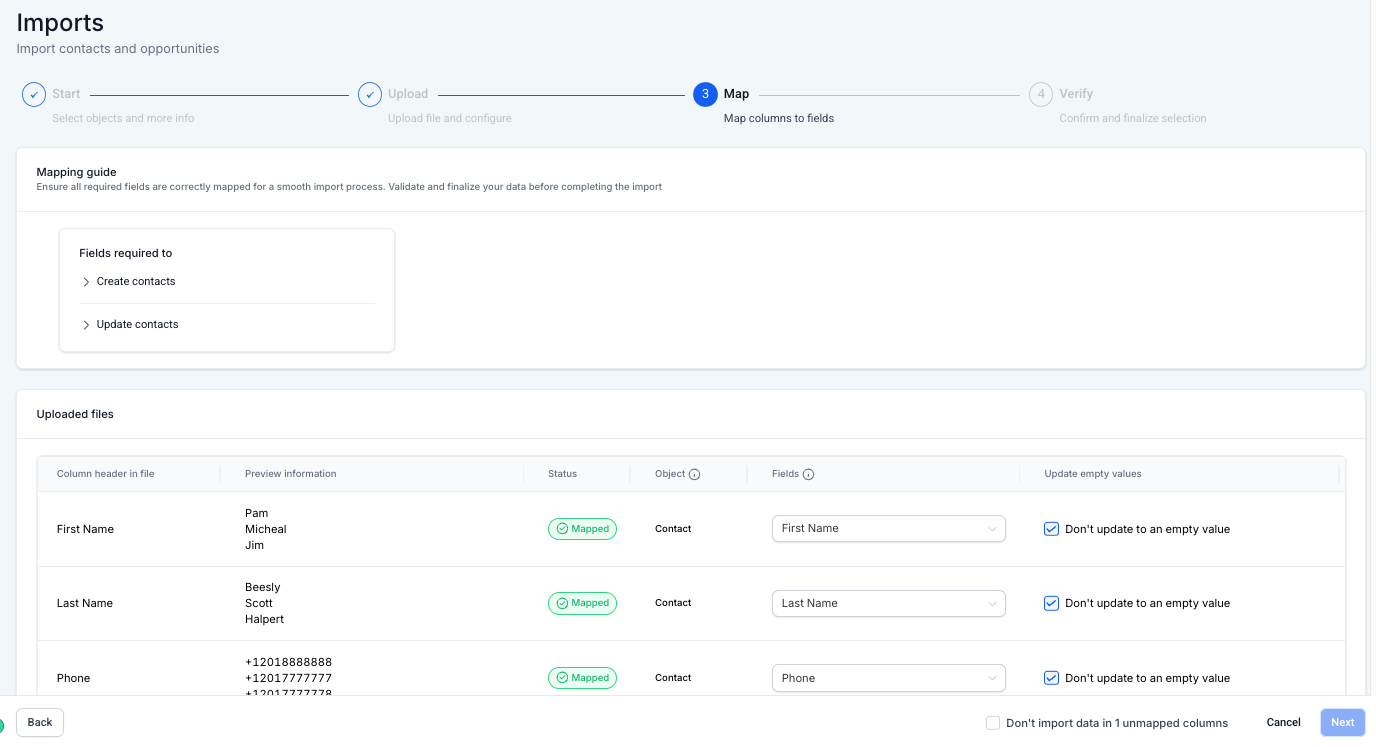
Step 4: Mapping Column to Fields
Ensure each column in your file is correctly mapped to the corresponding field in the system.
A few things to note:
- Checking the "Don't update Empty Values" checkbox will not update any field if the imported file has empty values and the field does have some value for the opportunity.
- If you decide not to import a certain field, you can choose to keep it unmapped and check the box at the bottom to proceed. "Don't import data in (1) unmapped columns"
- If Contacts and Opportunities are on the same line in the CSV, they will be automatically mapped to each other.
- If you are adding them as Opportunity as well, make sure that you map accordingly; Opportunity Object to add them in the opp card, Contact object to add them in the contact profile
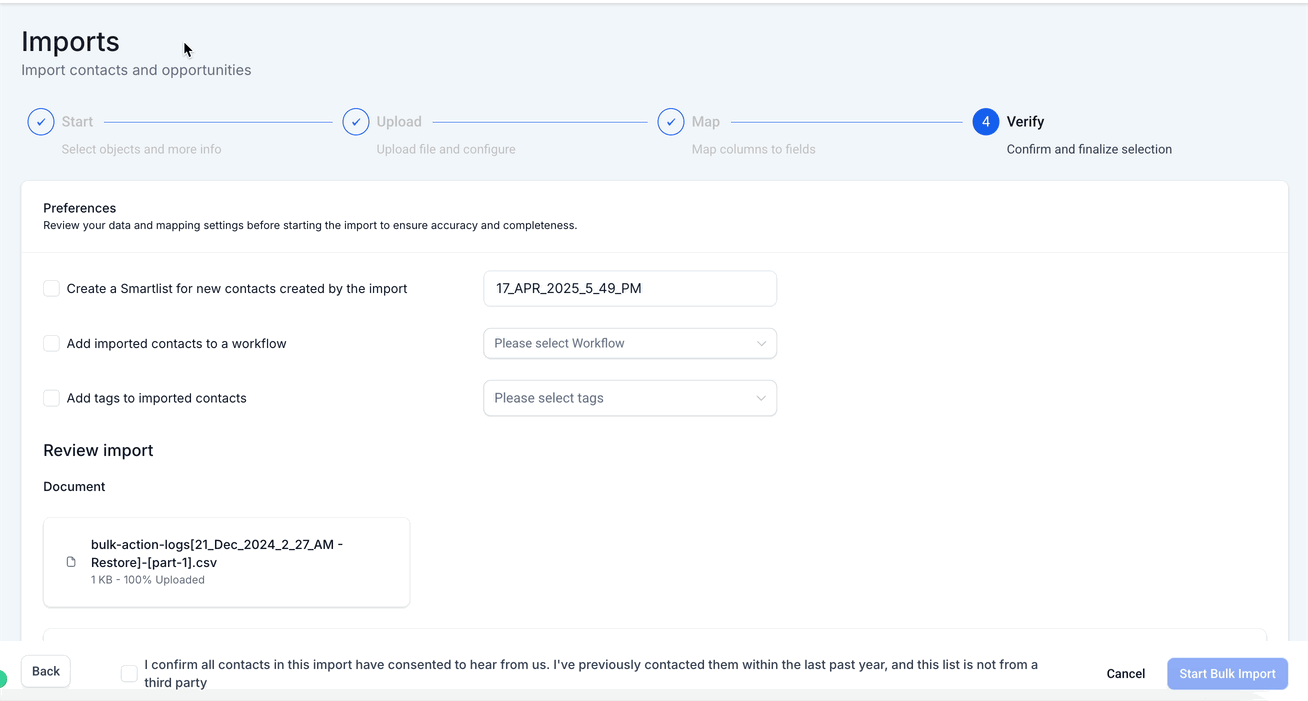
Step 5: Verify, Confirm, and Finalize Selection
Finalize the setup by reviewing your preferences, checking field mappings, and confirming consent before starting the import. This final step ensures that contacts are correctly tagged, sorted, and added to workflows, with your data fully verified.
Preferences: Optional Actions Before Import
- Create a SmartList for new contacts
- Add imported contacts to a workflow
- Tag imported contacts for easy segmentation
Review your Field Mapping. Make sure all mandatory fields are correctly mapped. Confirm that custom fields are assigned as intended.
Monitor Import Status
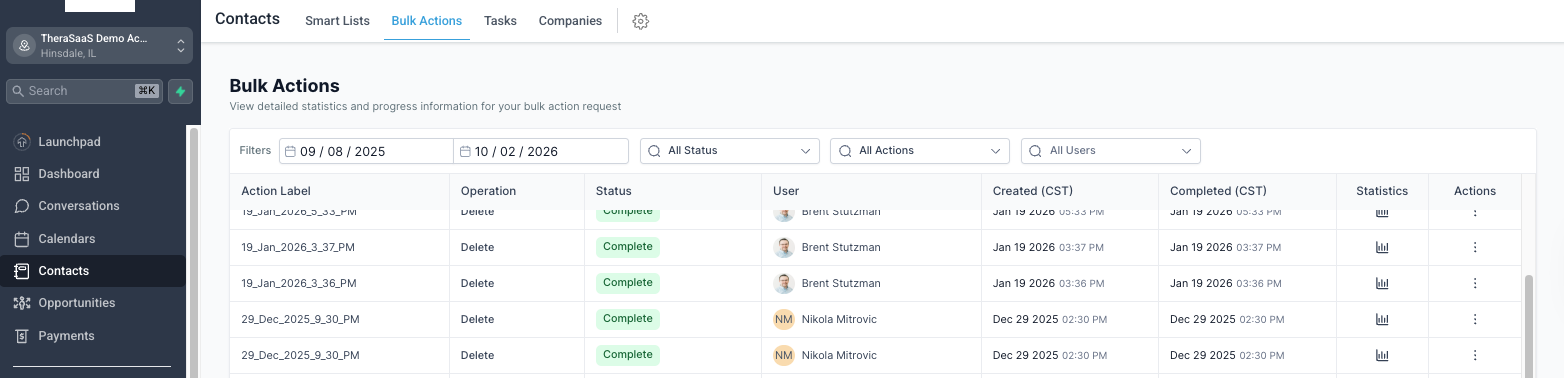
- You can monitor the progress and status of the import via the Contacts and Opportunities Bulk Actions Pages.
- Both contacts and opportunities imports will appear in the same place under Bulk Actions.
- Click on the "Show Stats" button to view the Stats of the import - you can also download the error log and view further details about the error and how to fix them in the "Error" tab.
Was this article helpful?
That’s Great!
Thank you for your feedback
Sorry! We couldn't be helpful
Thank you for your feedback
Feedback sent
We appreciate your effort and will try to fix the article