Contact Window Pane for Opportunities
Viewing and interacting with contact details no longer means losing your place. With the new contact overlay, clicking a contact's name from the Opportunities page (contact name or conversation icon) or the Appointments page opens the contact within the same page instead of redirecting you to the contact details page. You get quick access to contact information and conversations while keeping your current workflow in context.
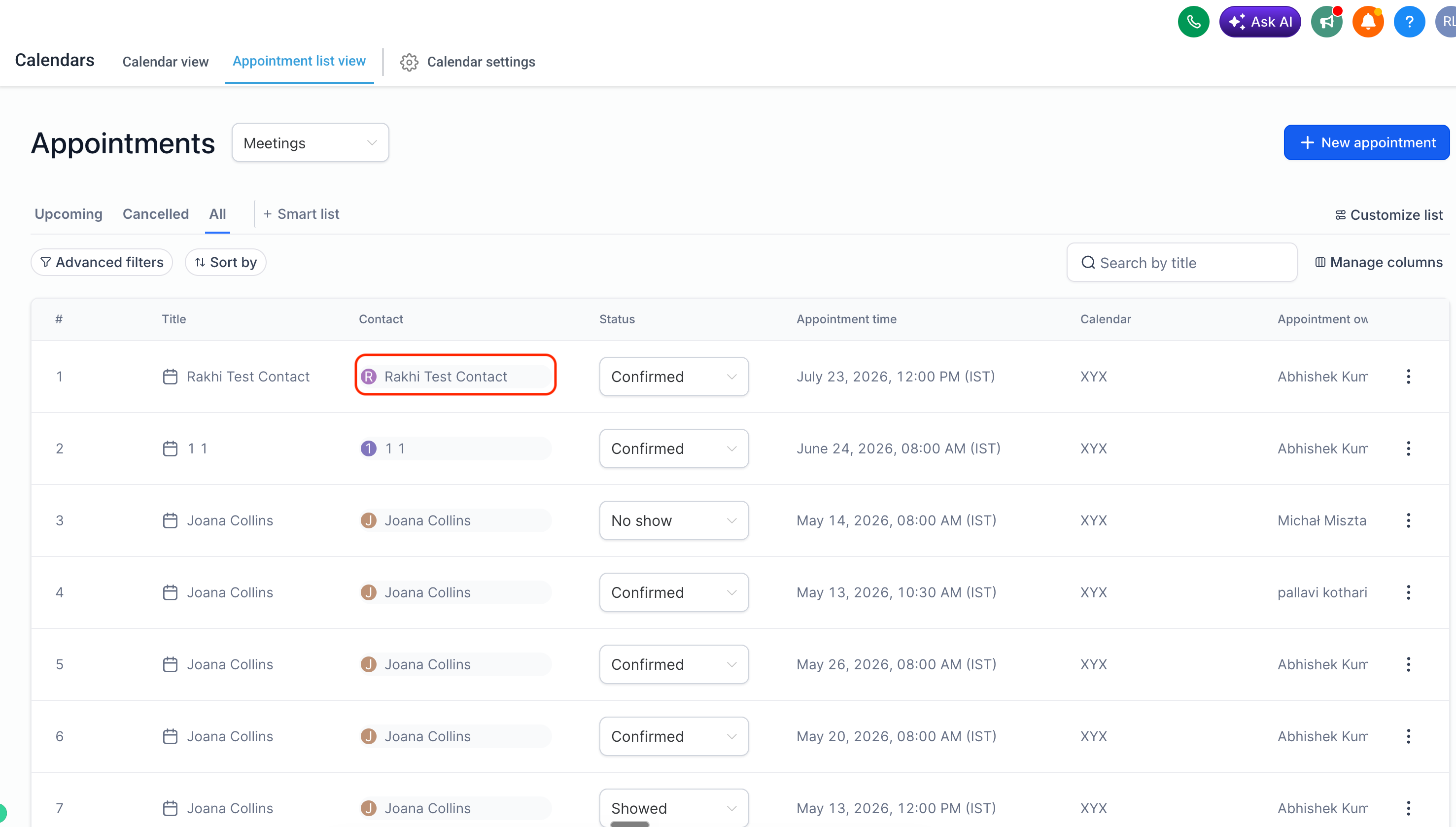
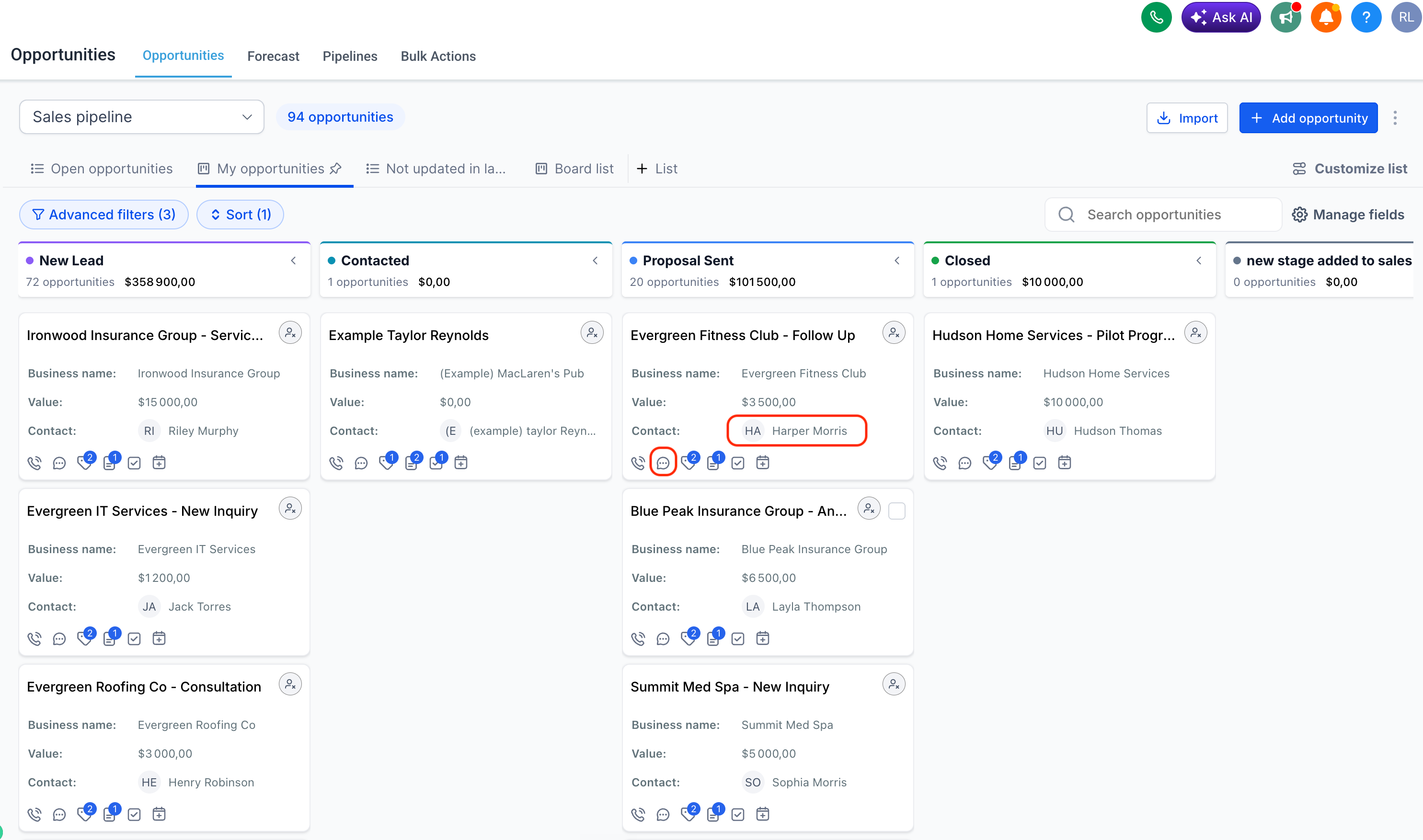
Clicking a contact's name from Opportunities or Appointments redirected you to the full contact details page, taking you away from the page you were working on.
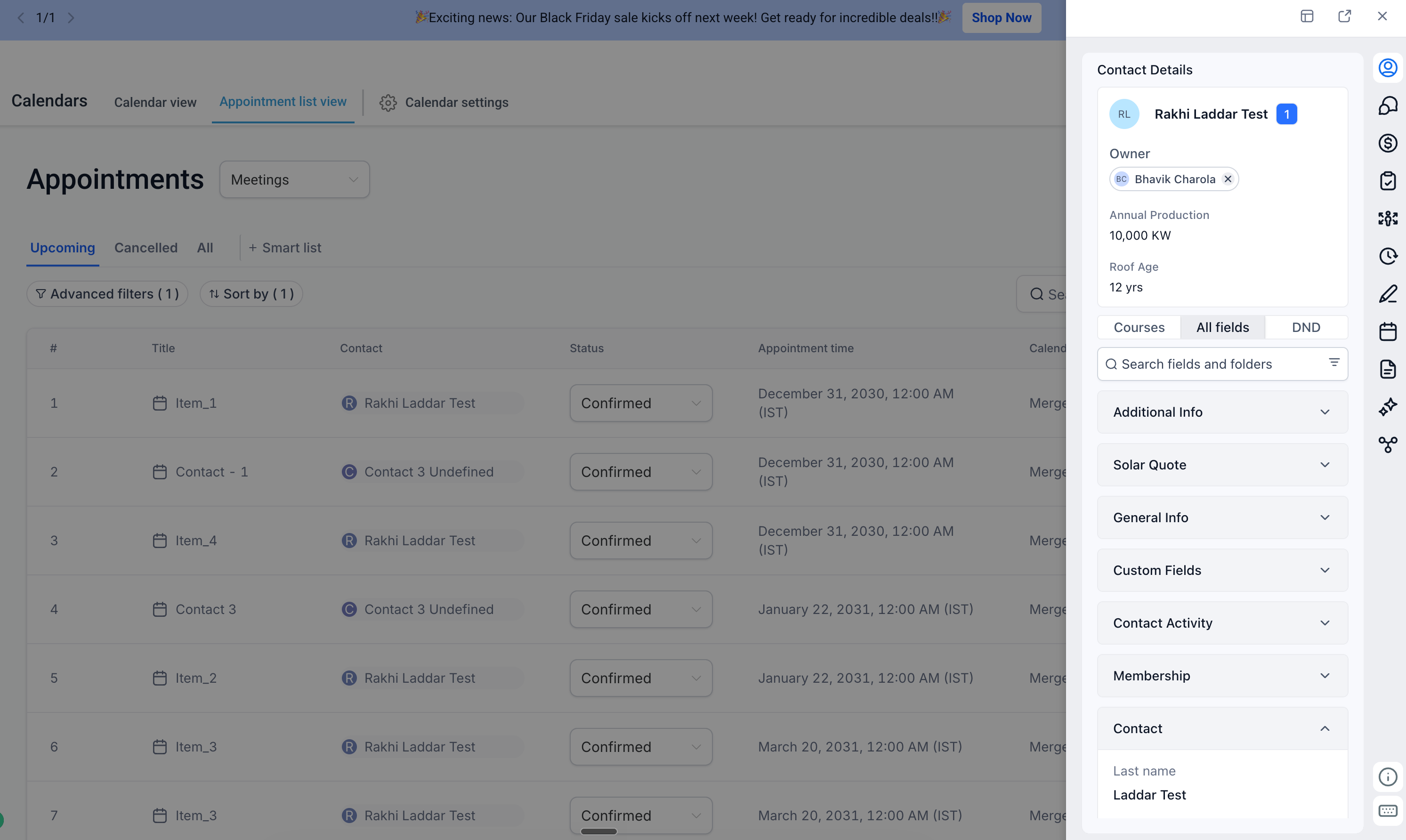
The contact opens in an overlay on the same page, and you choose how much of the contact record you want to see.
You now have three ways to view a contact:
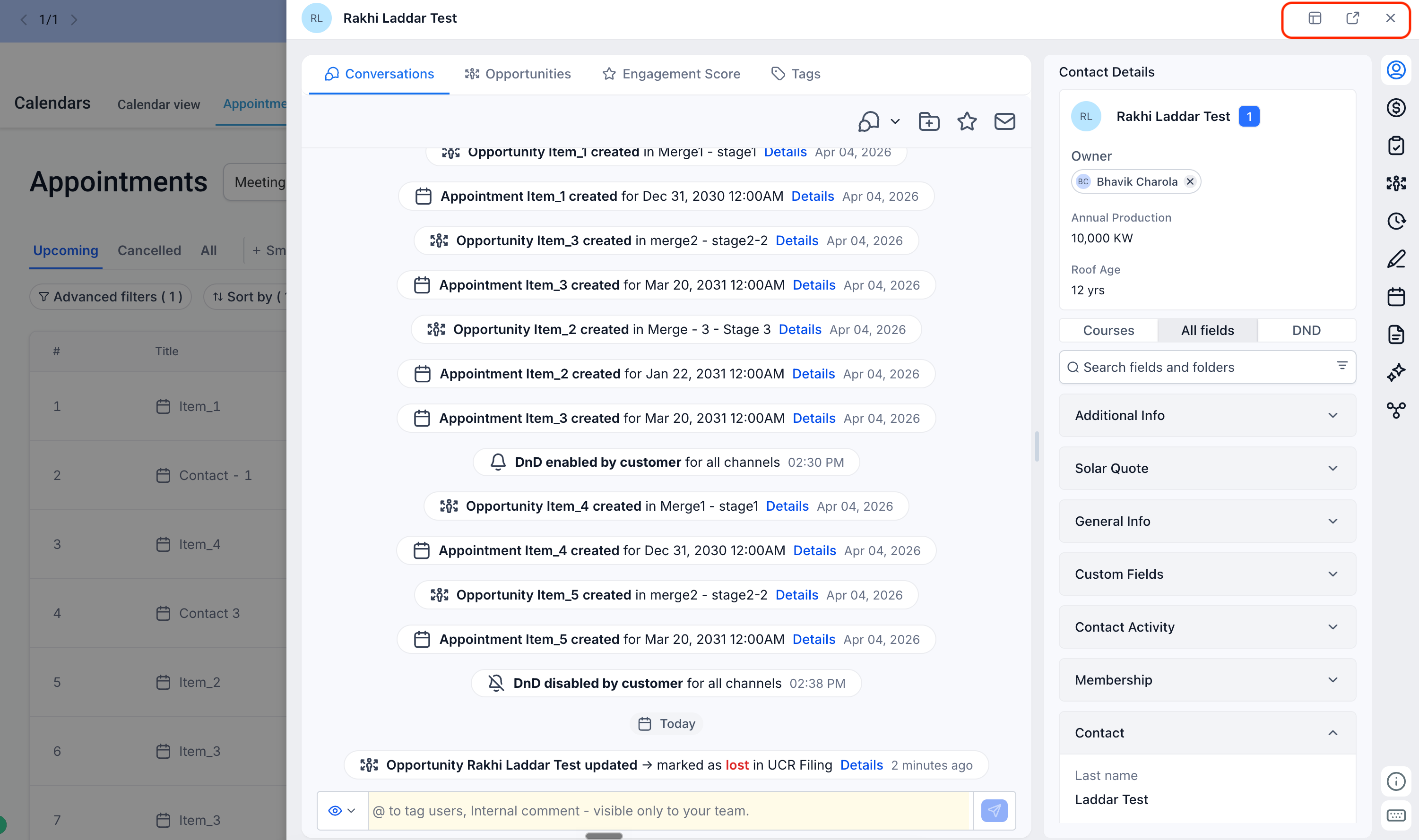
If you open the full contact details page from the overlay, you can navigate back to the page you were previously working on — so you can pick up right where you left off.
Managing opportunities and appointments often requires quickly checking contact information or reviewing a conversation. Previously, doing so meant navigating away from the page you were working on and then finding your way back. The contact overlay brings contact details and conversations directly into your existing workflow.
Fewer page changes
Open a contact without leaving Opportunities or Appointments.
Better context retention
Your place in the pipeline or calendar stays exactly where it was.
Faster access
Contact details and conversations are one click away.
Go to Opportunities or Appointments and click a contact's name or the conversation icon. The overlay opens in place — no setup required.
If the overlay doesn't open, opens blank, or doesn't reflect your contact details page customizations, contact support and include the page you were on and the contact you were opening.
Was this article helpful?
That’s Great!
Thank you for your feedback
Sorry! We couldn't be helpful
Thank you for your feedback
Feedback sent
We appreciate your effort and will try to fix the article