Pipeline stage automation allows you to trigger specific automated actions, such as sending an email or SMS, when an opportunity moves to a designated stage in your pipeline.
With pipeline stage change triggers, you can automatically perform actions—like sending emails, updating records, or assigning tasks—whenever an opportunity changes the stage inside of your visual pipeline. This ensures that every stage transition is handled consistently and efficiently & can save time on manually following up with client leads.
This guide provides a step-by-step process to set up an automation within TheraSaaS. As a sample, we will guide you through how to send an email when an opportunity enters a certain stage.
Steps to Set Up Automation
1. Create a New Workflow
Navigate to Automations in TheraSaaS.
Click on Create Workflow.
Select Start from Scratch.
2. Name the Workflow
Assign a name to your automation, such as Pipeline Stage - [Action you want to happen].
3. Set the Trigger - action causing the automated sequence to occur
Choose Pipeline Stage Changed as the trigger.
Name the trigger (e.g., "Action").
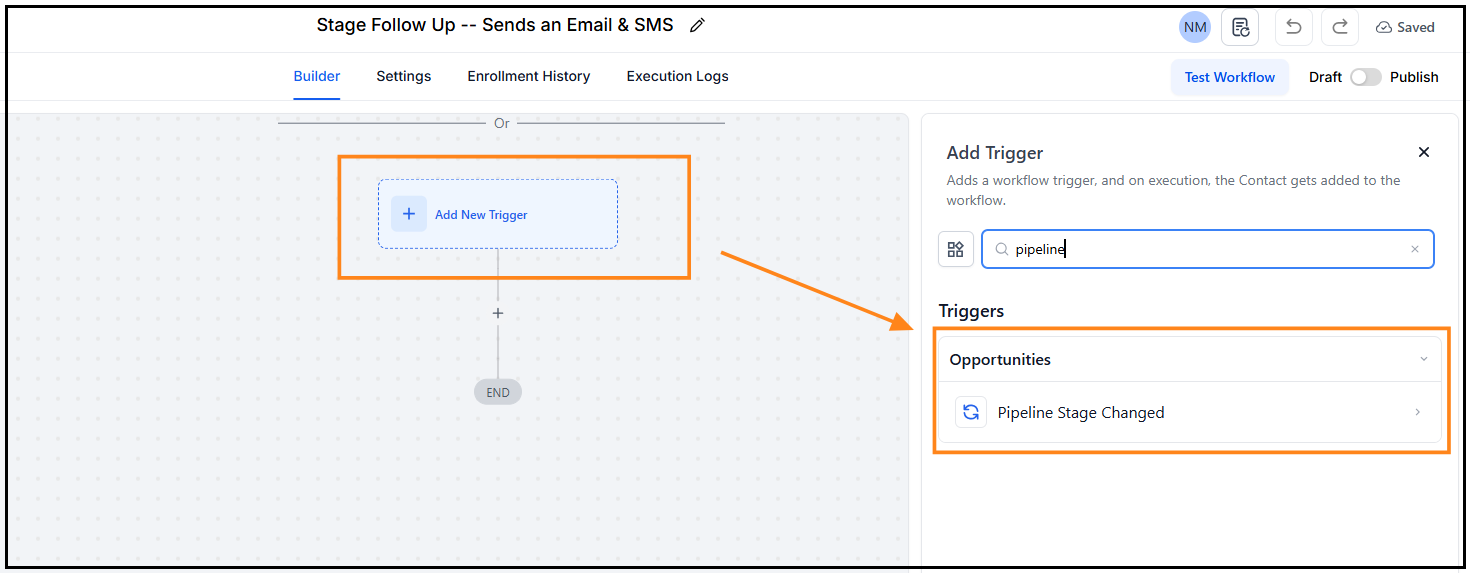
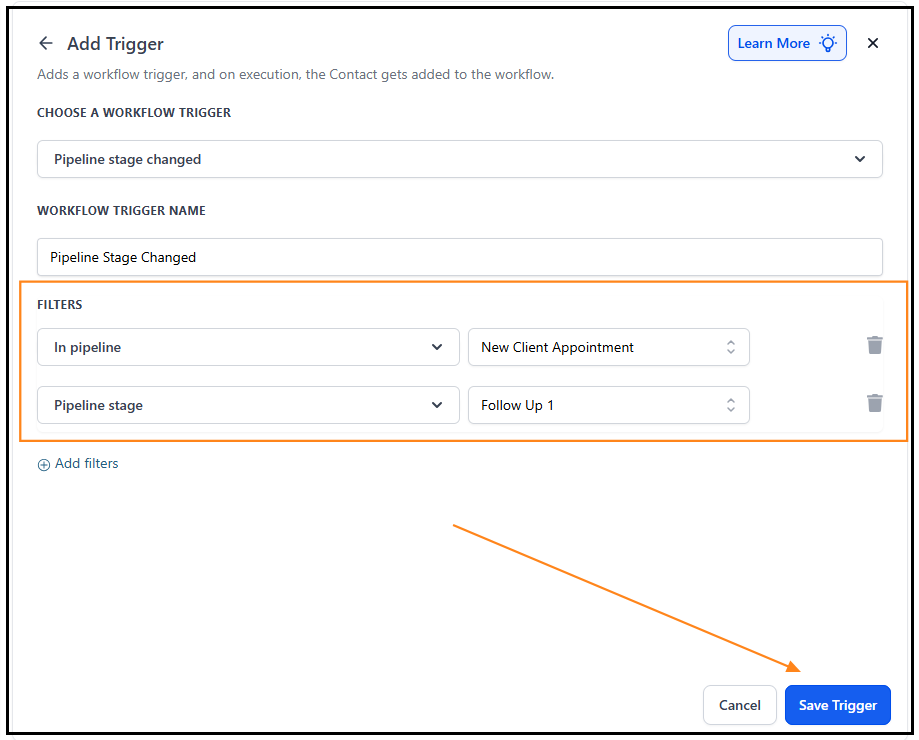
4. Specify the Pipeline and Stage that will be triggering automated events.
Click Add Filters to refine the automation.
Select the Pipeline where this automation should occur.
Choose the Pipeline Stage (e.g., "Action").
Save the trigger.
5. Define the Action
Click Add Action. - To set automated events that will be triggered by the pipeline stage change defined above.
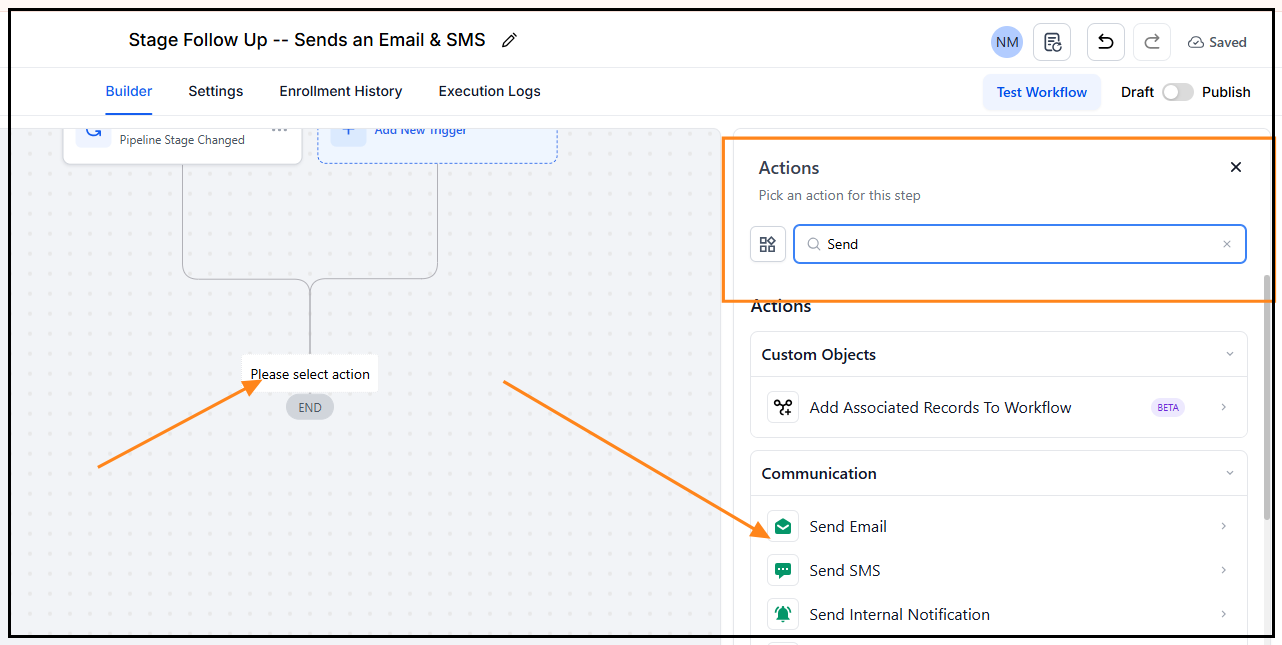
Select Send Email or Send SMS.
Configure the email/sms message content details:
Recipient
Subject
Body ( Type in the message or select an existing Snippet)
Save the action.
6. Prevent Steps from Returning to Action 1
Click Add Action.
Select Remove from Workflow.
Save the action to ensure the email is sent only once per opportunity.
7. Publish and Activate
Click Save.
Ensure the workflow is Published.

By following these steps, you can automate any action to happen whenever an opportunity moves to a certain stage, streamlining communication and reducing manual work.
Optional: Set Wait-Time Step & Additional Automated Steps;
Example: Get internal notification after (3 days, 7 days) informing the intake coordinator to follow up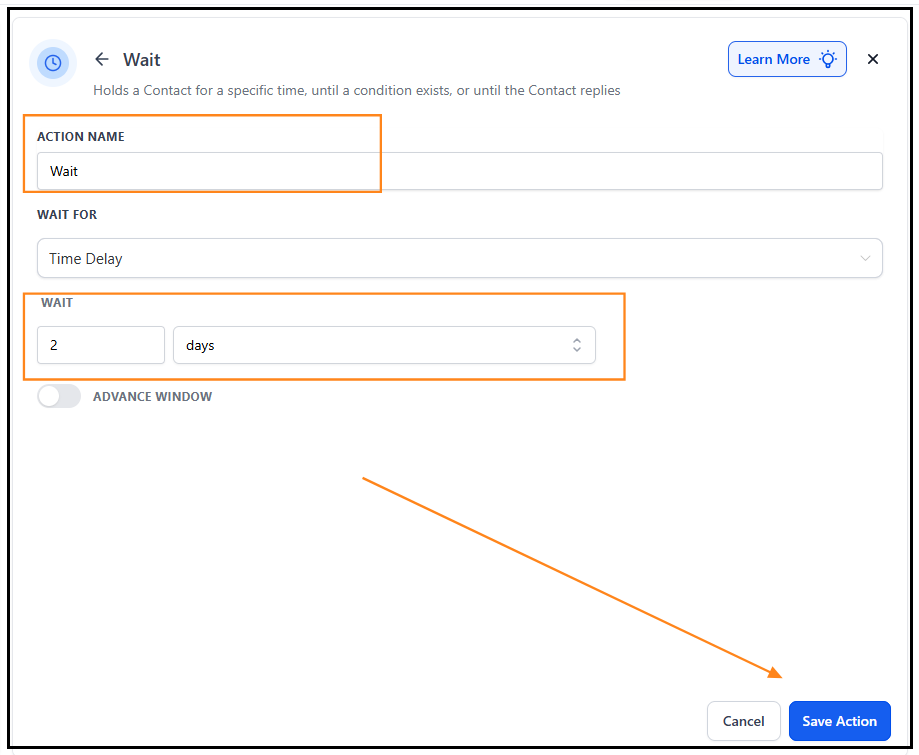
Under Actions—Search for Send Internal Notification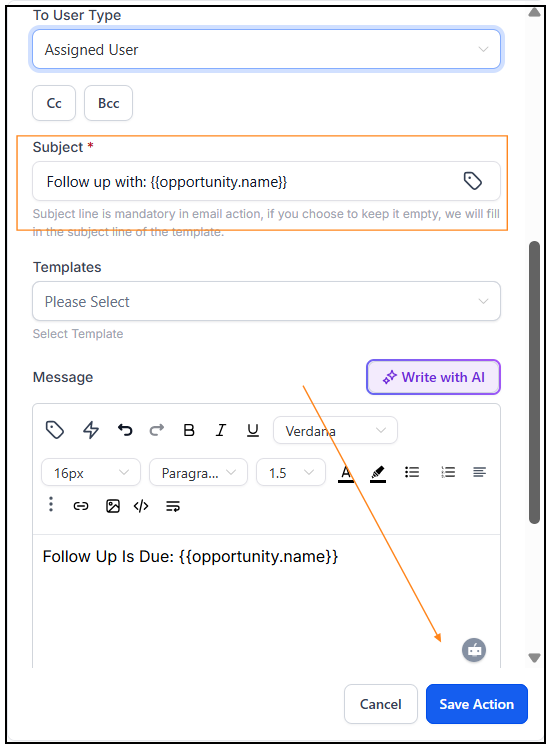
Once all the actions are added, make sure to publish the workflow to make it live.
When updating the pipeline stages, make sure to update the automation trigger accordingly to ensure the workflow continues operating as expeected.
Was this article helpful?
That’s Great!
Thank you for your feedback
Sorry! We couldn't be helpful
Thank you for your feedback
Feedback sent
We appreciate your effort and will try to fix the article