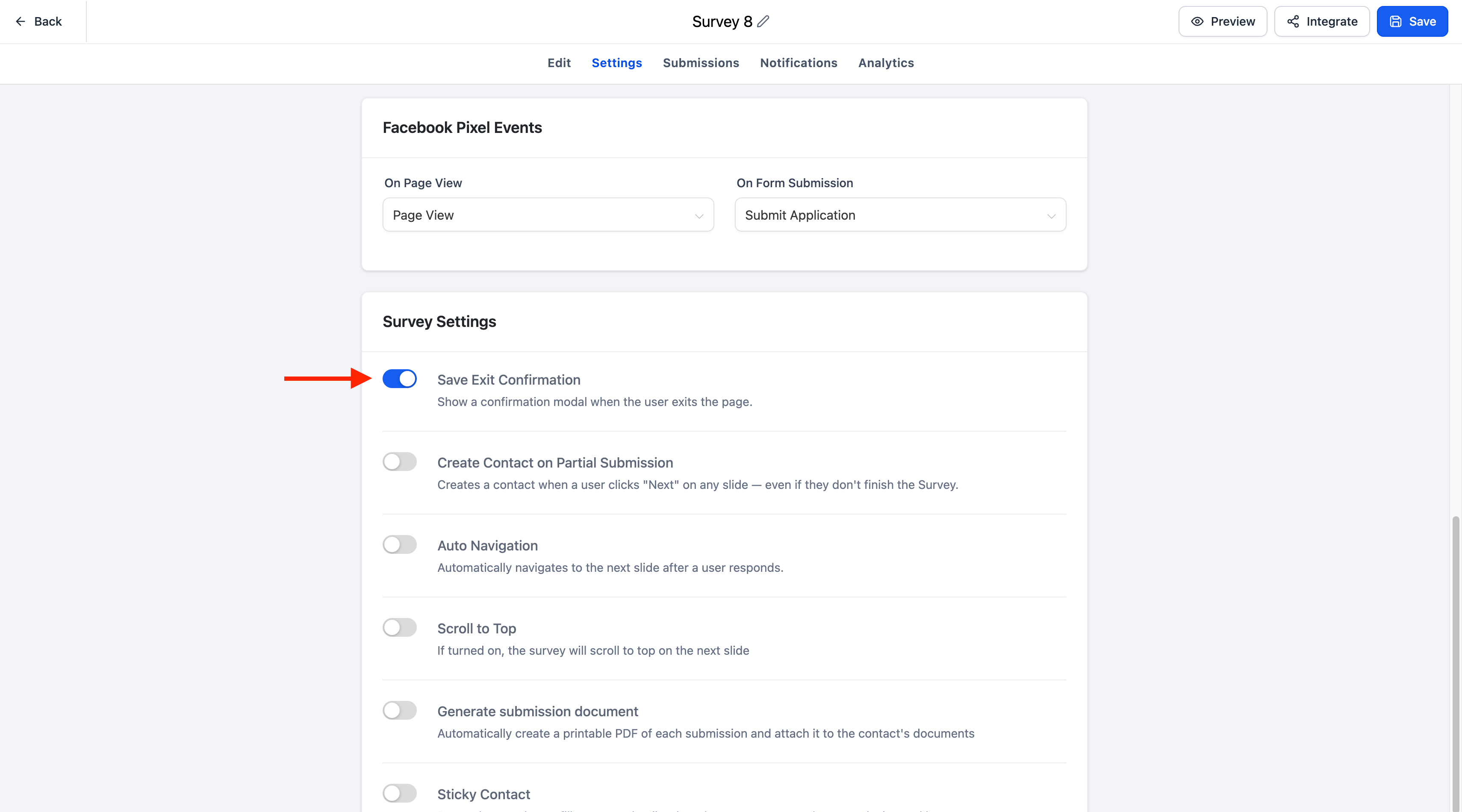
Long forms just got a whole lot friendlier. With the new Save Progress feature, respondents can leave a multi-step Form, Survey, or Quiz and return later to continue where they left off. Turn it on with a single toggle — TheraSaaS handles the rest.
A new Save exit confirmation toggle is now available in the Settings tab for:
When enabled, a respondent's progress is saved automatically if they leave before submitting, so they can resume their submission later.
Automatically saves progress for multi-step Forms, Surveys, and Quizzes
Enable or disable it any time with the Save exit confirmation toggle
Respondents return later and continue where they left off
A resume modal lets respondents continue or start over
The Resume Progress modal matches your existing branding
Fully supported on both desktop and mobile
The Resume Progress modal automatically inherits the styling you've already configured, so it never looks bolted on:
- The CTA button color inherits your configured footer color.
- The text font matches your configured label font.
- Save Progress is available for multi-step Forms, Surveys, and Quizzes.
- The feature is controlled by the Save exit confirmation toggle in the Settings tab.
- Progress is saved automatically only when the feature is enabled.
- The Resume Progress modal is automatically styled to match your Form, Survey, or Quiz branding.
- Existing Forms, Surveys, and Quizzes remain unchanged until the feature is explicitly enabled.
Turn this on for your longest intake forms first — client onboarding, insurance details, and detailed history questionnaires are where drop-off is highest and resuming saves the most re-typing.
After enabling the toggle, run through your own form on desktop and mobile, leave partway, then return — this confirms the Resume Progress modal appears and matches your branding before clients see it.
Single-step Forms, Surveys, and Quizzes aren't covered, and nothing changes on your existing assets until you switch the toggle on for each one individually.
Was this article helpful?
That’s Great!
Thank you for your feedback
Sorry! We couldn't be helpful
Thank you for your feedback
Feedback sent
We appreciate your effort and will try to fix the article