How to Connect Your Psychology Today Account to TheraSaaS

Modified on Fri, 19 Jun at 1:57 PM


Overview

Automating your Psychology Today intake process means every new inquiry lands directly in TheraSaaS as a contact — no copy-pasting, no missed leads. This guide walks you through the full setup: connecting your email, building two automation workflows, and testing everything end-to-end.
1
TheraSaaS — SettingsYou'll need this for email and domain configuration.
2
TheraSaaS — AutomationYou'll build both workflows here.
3
Psychology TodayYou'll update your account email in Account Settings.
1
Find Domain
2
Update Email
3
Test Connection
4
Workflow 1
5
Workflow 2
6
Connect
7
Create Contact
8
Final Test
1
Find Your TheraSaaS Email Sending Domain
Settings → Email Services
A
Navigate to Email Services
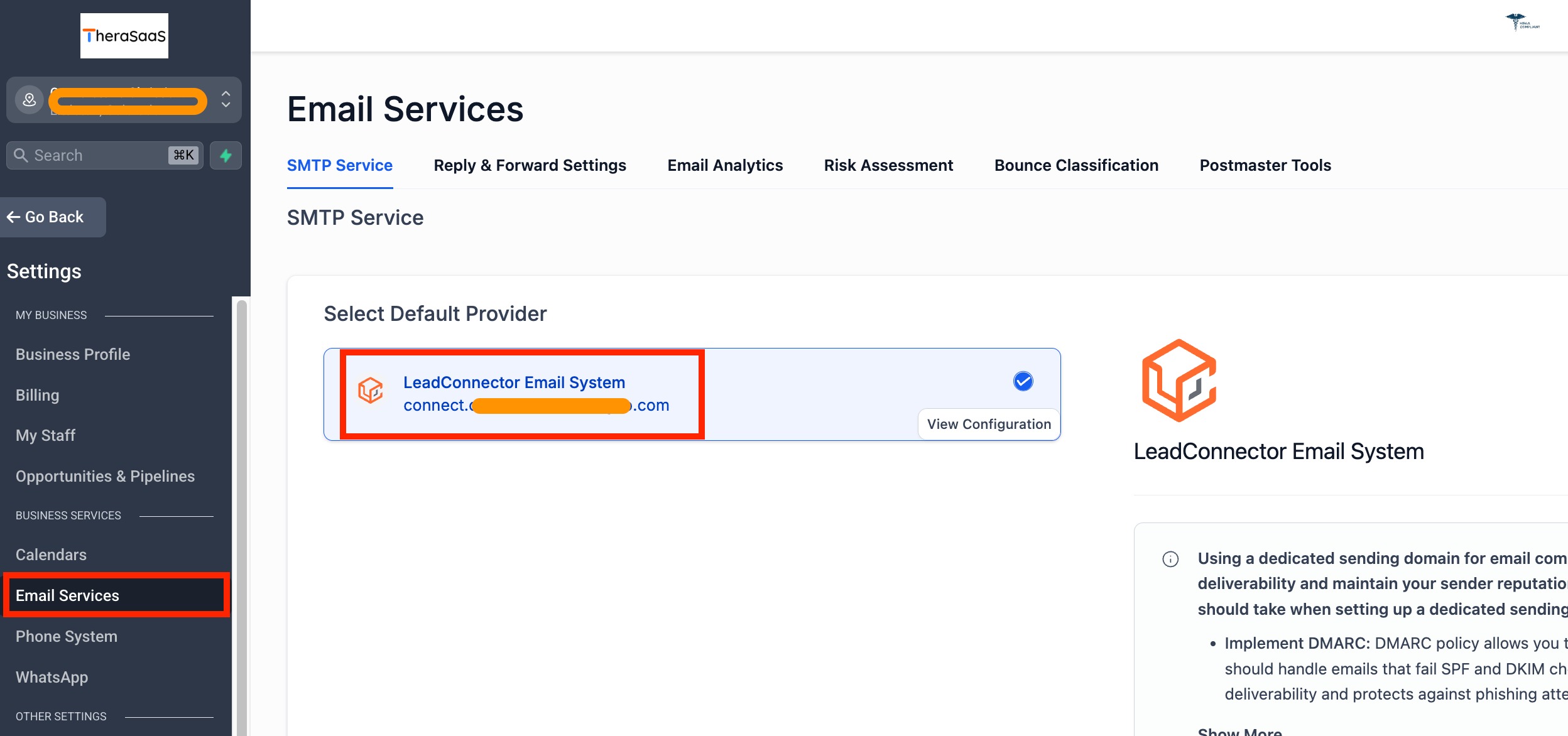
In TheraSaaS, go to Settings from the left-side menu, then click Email Services. Your dedicated TheraSaaS email sending domain will be displayed — it looks something like connect.yourdomain.com.
B
Copy your domain
Copy this domain — you'll need it in the next step.
? Any email address using this domain (e.g., hello@connect.yourdomain.com) will route messages directly into your TheraSaaS Conversations. The prefix before the @ can be anything you like.
2
Update Your Primary Email in Psychology Today
Psychology Today → Account Settings
A
Replace your primary email address
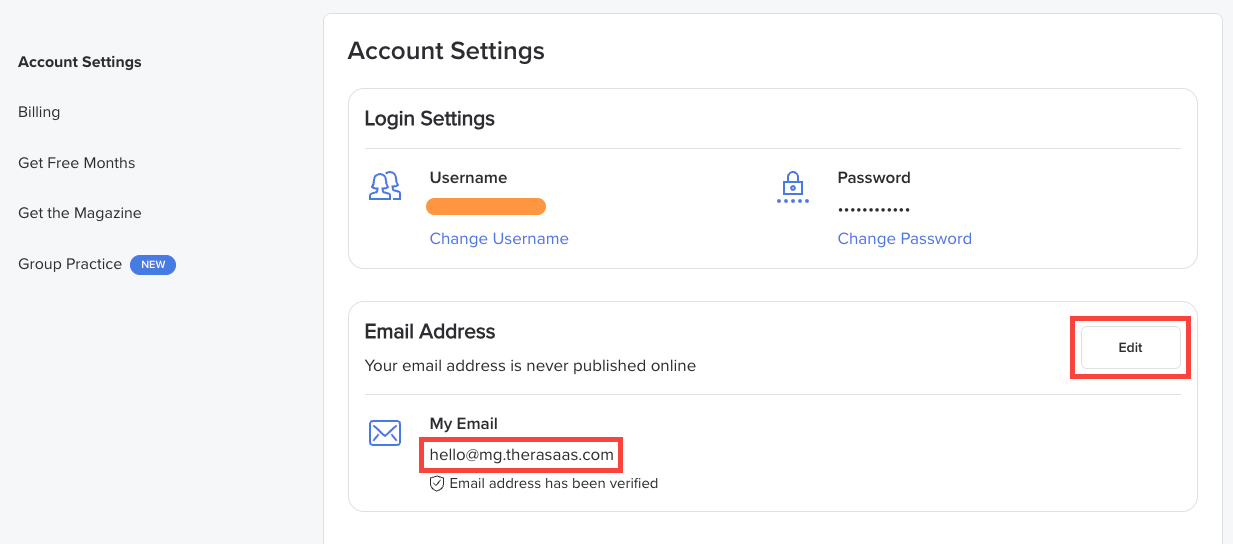
Log in to your Psychology Today account and go to Account Settings

Click Edit next to your primary email and replace it with a new address using your TheraSaaS sending domain — for example, hello@connect.yourdomain.com.

Check the box for "Receive emails from potential clients" and click Save.
B
Retrieve the verification code from TheraSaaS
Psychology Today will send a verification code to your new address. Since your TheraSaaS domain routes all mail into TheraSaaS, the code will appear in your Conversations tab. Copy it and paste it into Psychology Today to confirm.
C
Note the two sender addresses you'll see
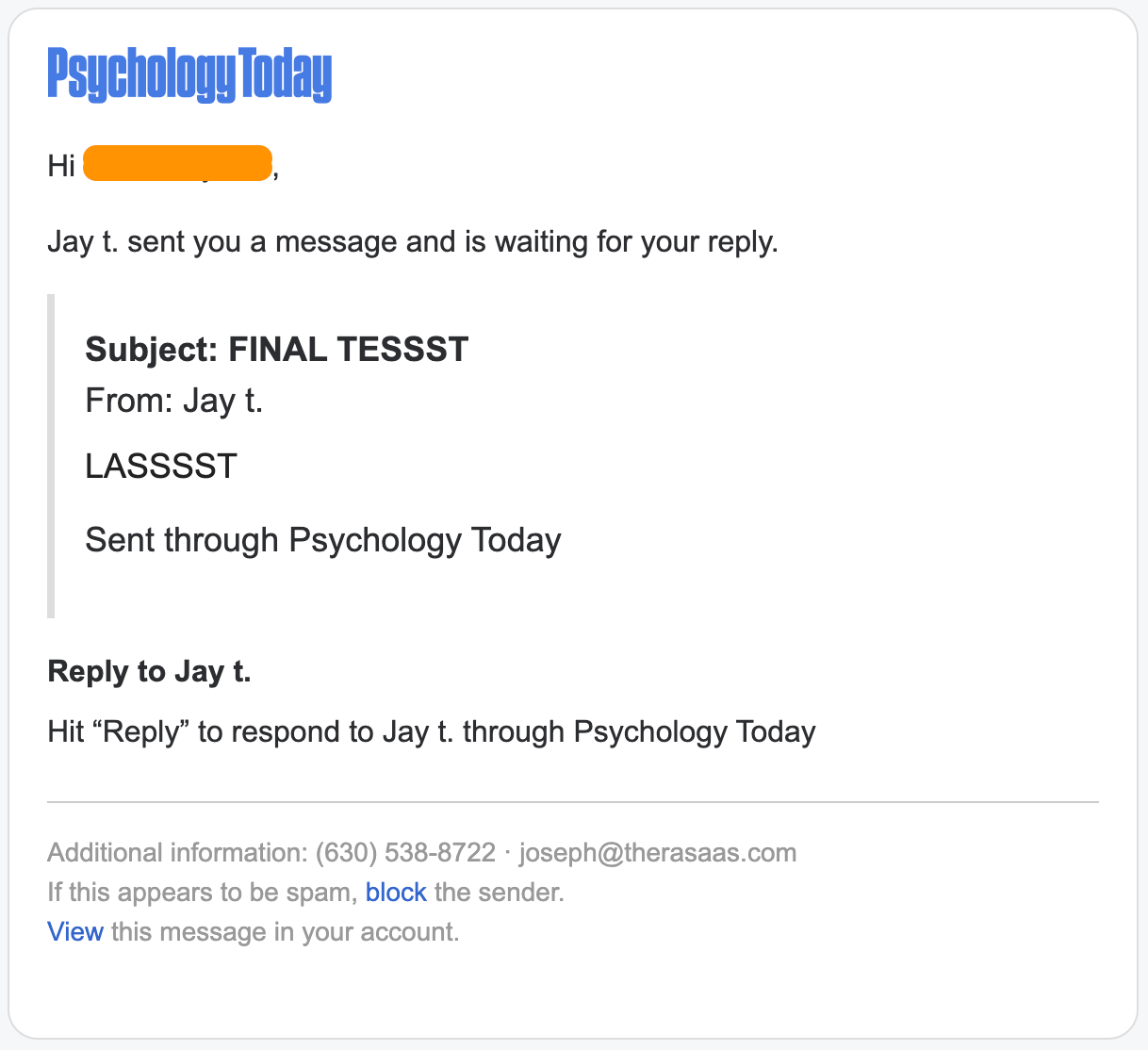
After verifying, you'll notice two sender addresses from Psychology Today in your TheraSaaS inbox:
Ignore
noreply@psychologytoday.com
The verification email only — not used for client inquiries.
Copy This
messages@msg.psychologytoday.com
This sends actual client inquiries. You'll paste this into Workflow 1's trigger.
3
Test That the Connection Works
Psychology Today Profile → TheraSaaS Conversations
Before building your workflows, confirm the email routing is live. Go to your Psychology Today profile page and submit a test inquiry using a test name, phone number, and email address. Then check your TheraSaaS Conversations tab — the test submission should appear within moments. If it shows up, you're ready to build the workflows.
✓ If the test message appears in Conversations, the connection is working correctly. Proceed to Step 4.
4
Build Workflow 1 — Email Trigger & AI Data Extraction
Automation → New Workflow → "1 - Psychology Today"
A
Create the workflow
Go to Automation → Create New Workflow from Scratch. Name it 1 - Psychology Today (numbering first helps with organization).
B
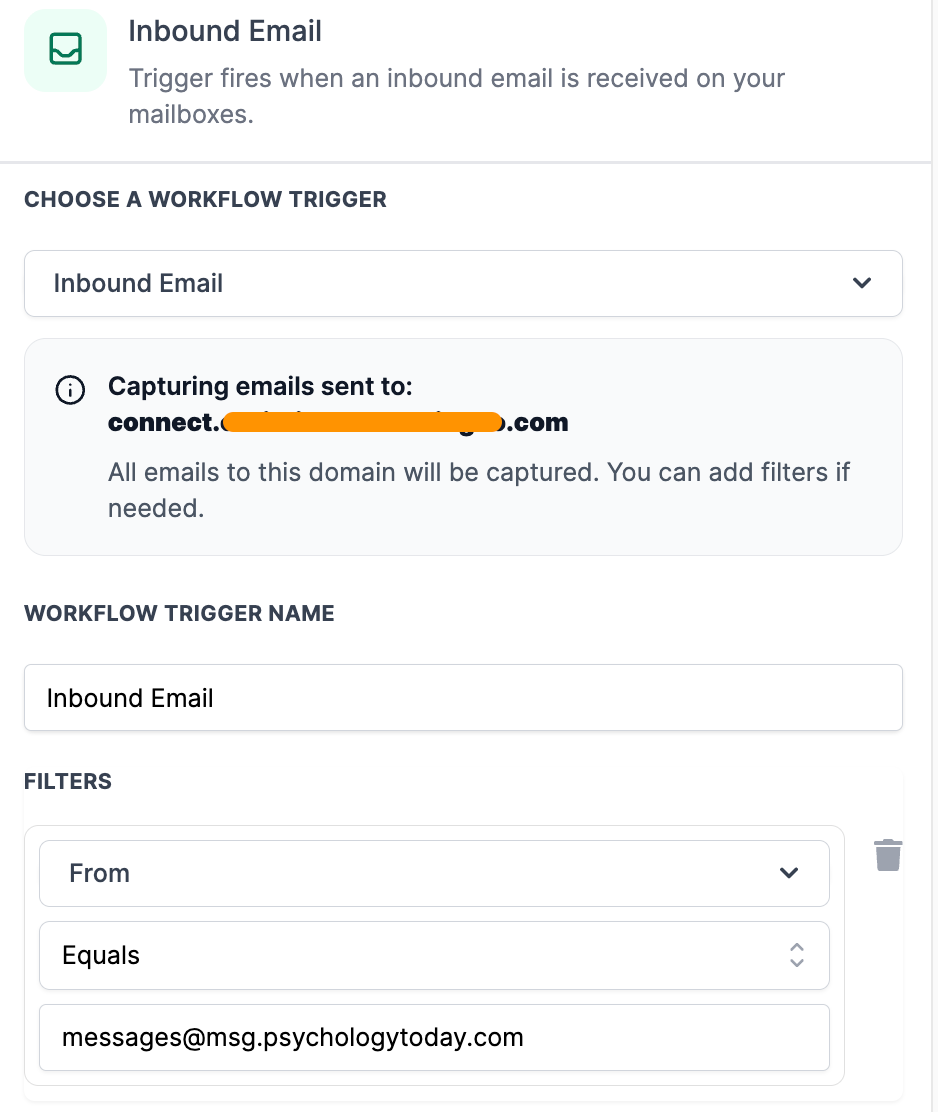
Set the trigger
Choose Inbound Email as the trigger. Under the filter, set it to: "Coming from" → messages@msg.psychologytoday.com. Save the trigger.


C
Add the AI Extract Data action
Click Add Action and search for AI Extract Data
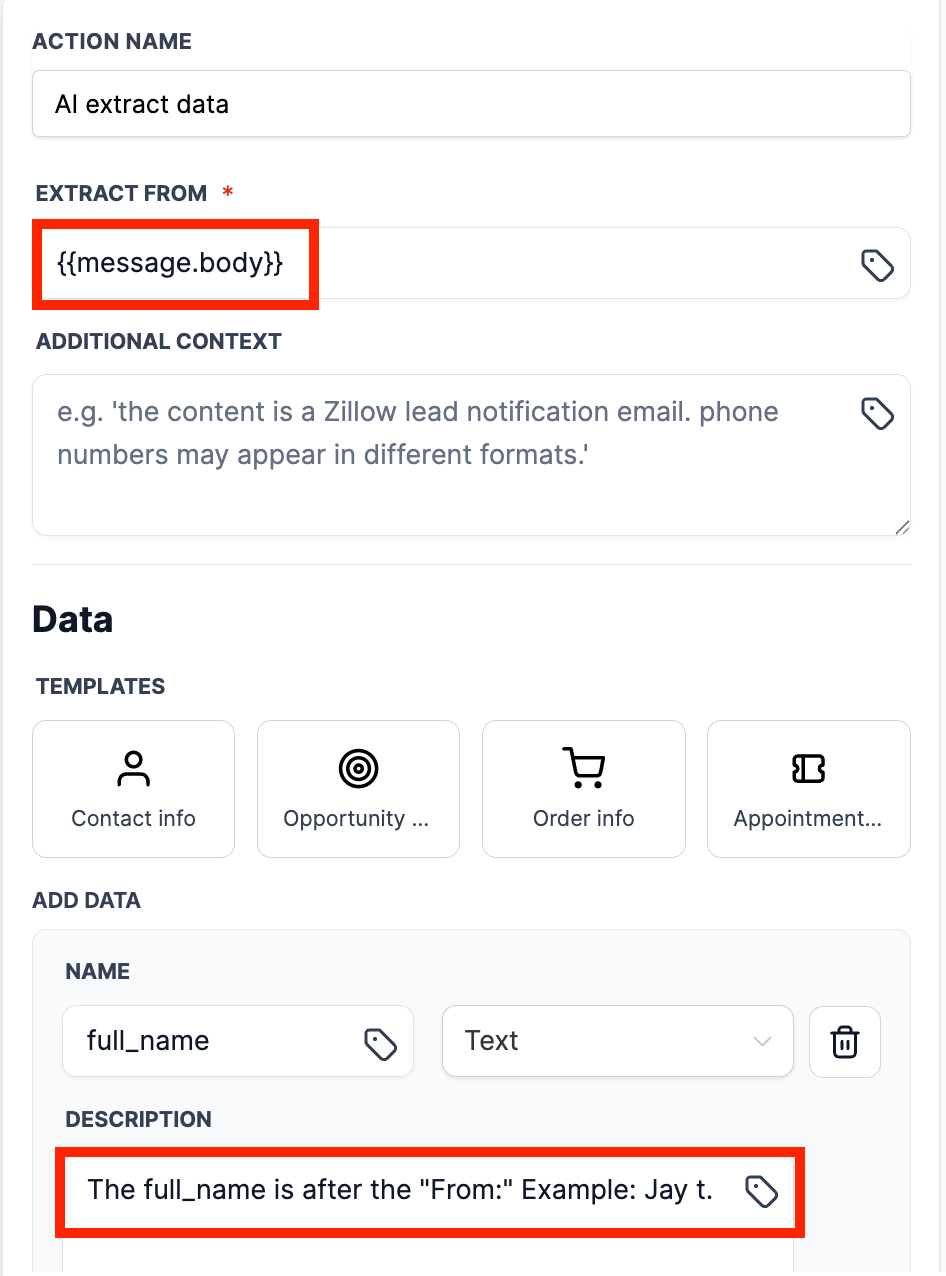
Under "Extract From," use the dynamic field selector and choose Message → Message Body {{message.body}}
Under Data, click Contact Info — this auto-populates Email, Phone, and Name fields.

⚠️ For the Name field, add a description to help the AI find the right value. Psychology Today emails show the client name after "From:". In the description field, write:

The full name is after the "From:" label in the email. Example: "From: Jane Smith"

This prevents the AI from accidentally pulling your therapist profile name instead.
D
Save and keep this tab open
Click Save Action, then Save the workflow. Keep this tab open — you'll return to it in Step 6.
5
Build Workflow 2 — Webhook Receiver & Contact Creator
Automation → New Workflow → "2 - Psychology Today"
A
Create the workflow
In your second TheraSaaS tab, go to Automation → Create New Workflow from Scratch. Name it 2 - Psychology Today.
B
Set the trigger and copy the webhook URL
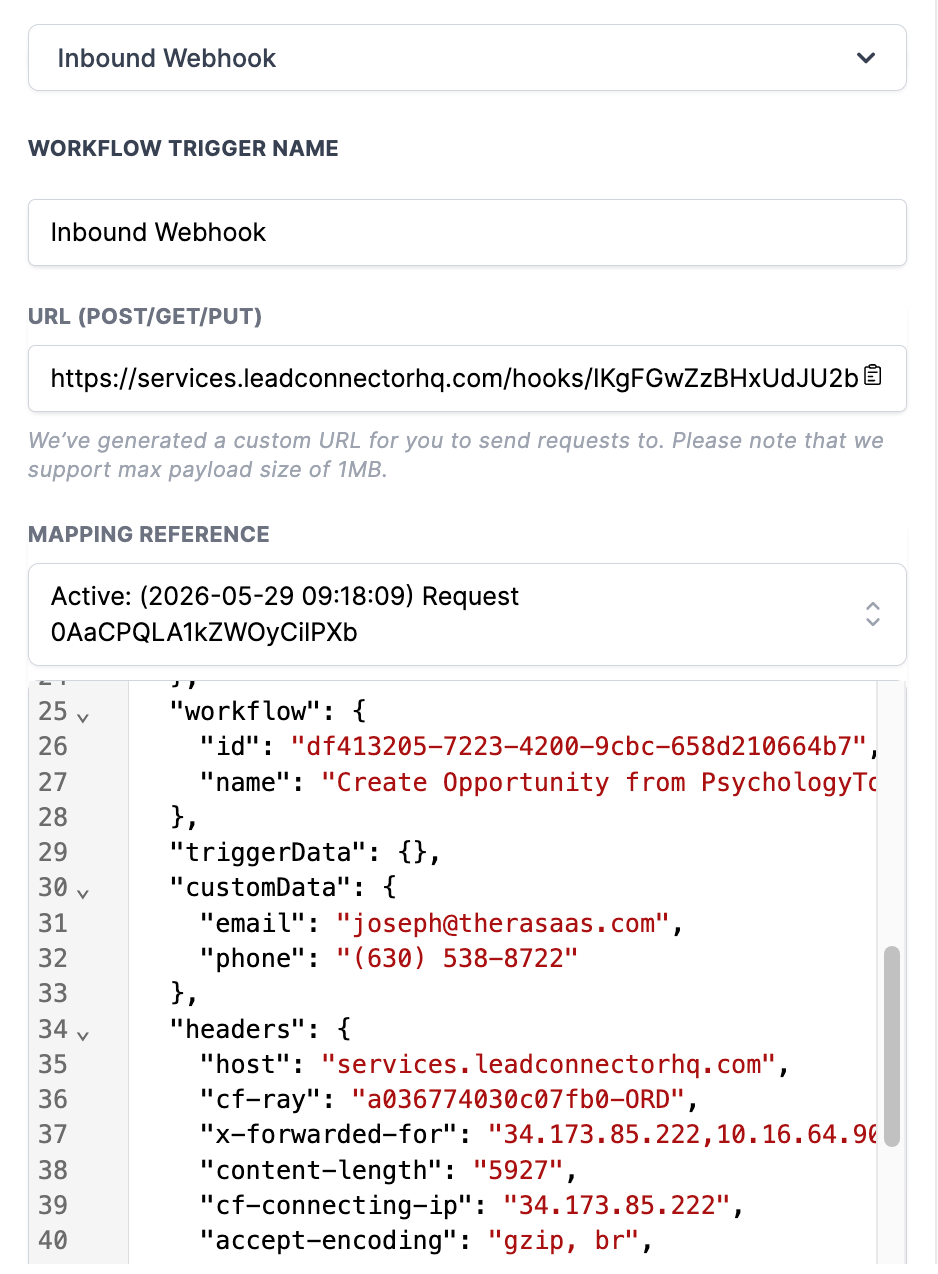
Choose Inbound Webhook as the trigger. TheraSaaS will generate a webhook URL — copy it. You'll paste this into Workflow 1 in the next step. Save the trigger but don't add actions yet.


C
Feed the webhook a test payload
Workflow 2 needs sample data before it can reference field names. Here's a quick workaround:
  1. Paste the copied webhook URL into your browser's address bar.
  2. Append ?name=YourName to the end of the URL and press Enter.
  3. Back in Workflow 2, click Fetch Sample Requests. Your test payload should appear.
  4. Save the trigger.
6
Connect the Two Workflows
Workflow 1 → Webhook Action → Workflow 2
A
Add the Webhook action to Workflow 1
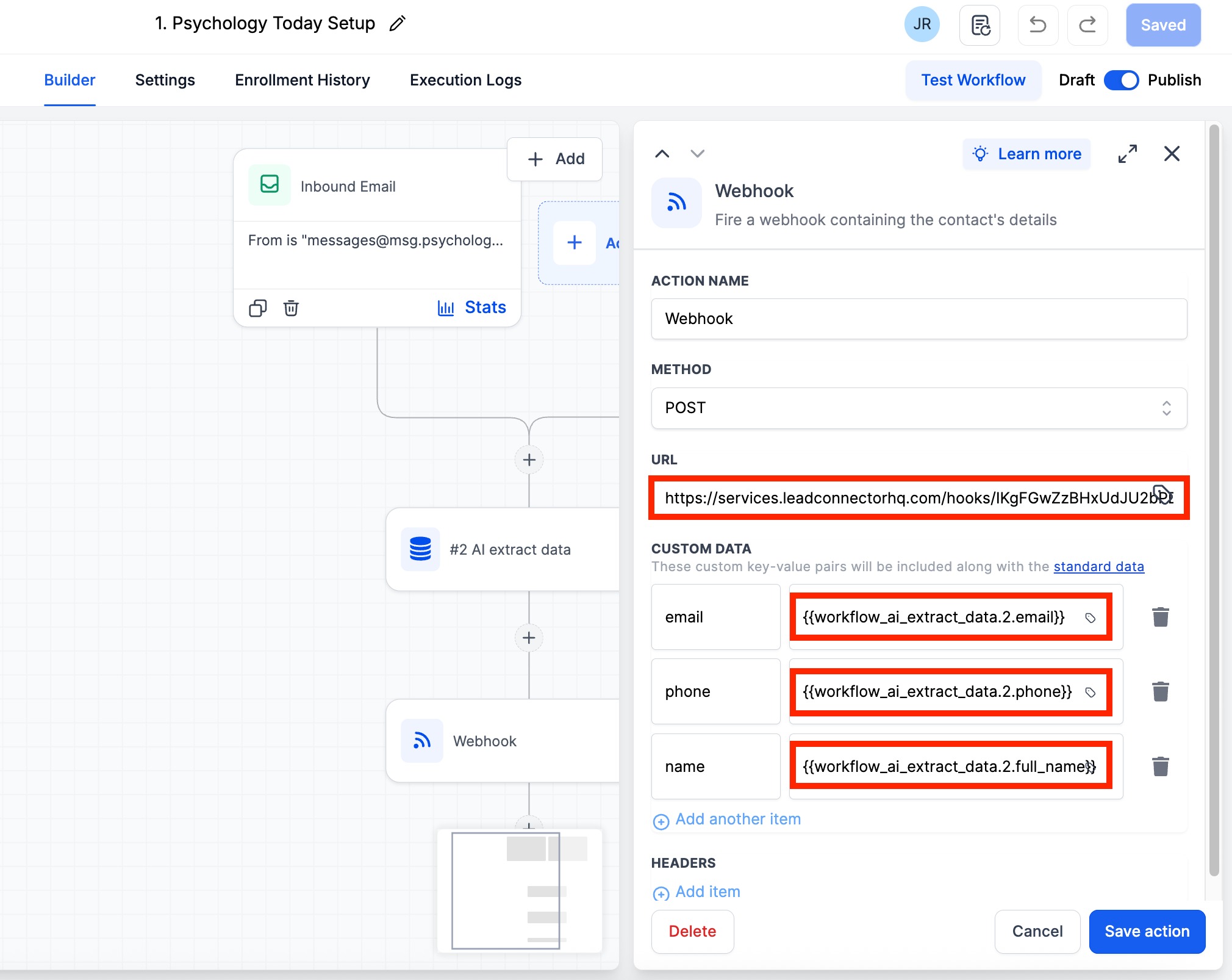
Go back to Workflow 1. Below the AI Extract Data action, click Add Action and search for Webhook. Paste the webhook URL from Workflow 2 into the URL field.
B
Map the data fields
Click Add Item and map the three fields as follows:
NameValue
nameAI Extract Data → Full Name
emailAI Extract Data → Email
phoneAI Extract Data → Phone


Click Save Action, then Save the workflow.
7
Complete Workflow 2 — Create the Contact
Workflow 2 → Add Action → Create Contact
A
Add the Create Contact action
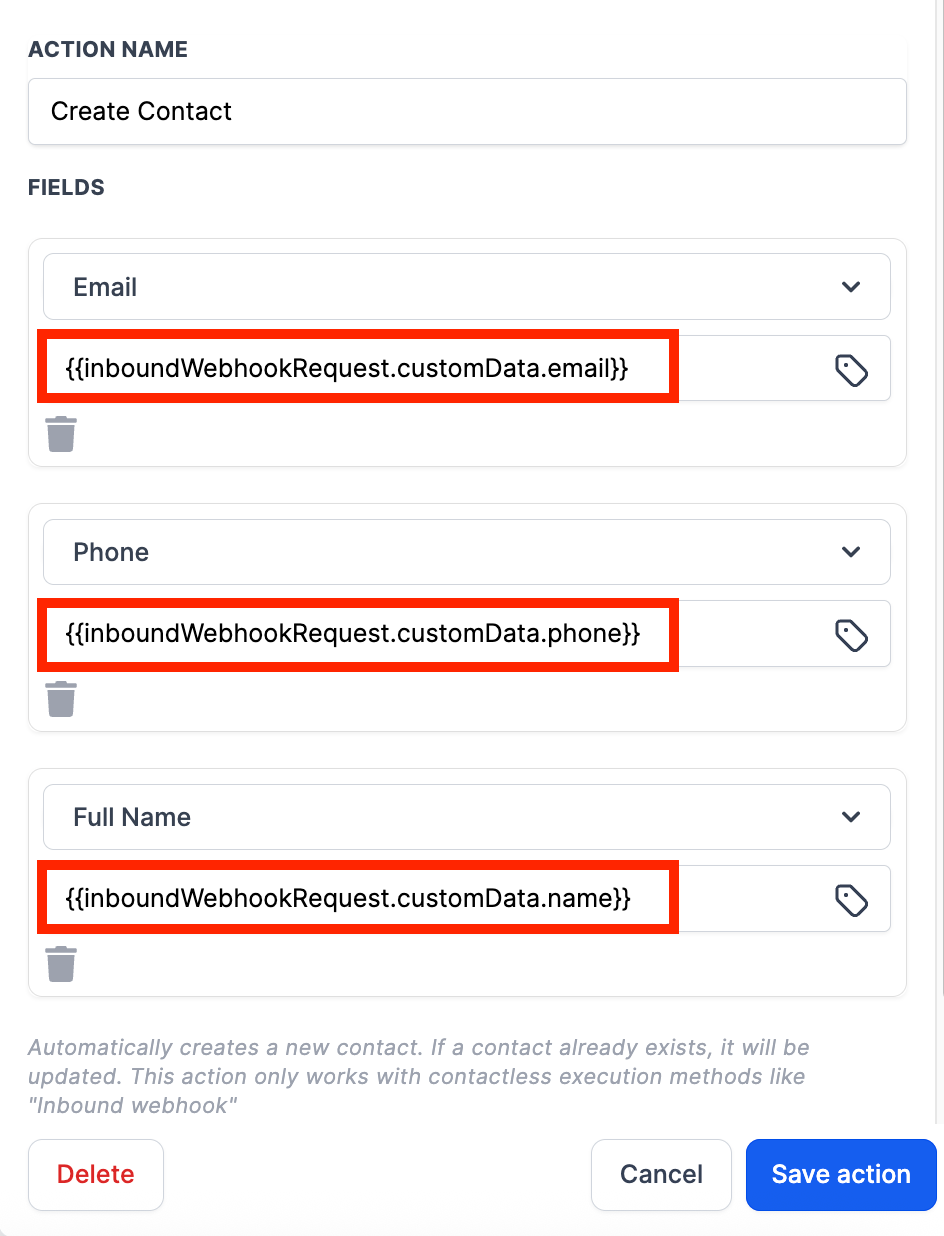
Go back to Workflow 2. Click Add Action → Create Contact. Map each contact field using Custom Data from the inbound webhook:
Contact FieldValue / Variable
Full NameCustom Values → Inbound Webhook Trigger → Custom Data → name
{{inboundWebhookRequest.customData.name}}
EmailCustom Values → Inbound Webhook Trigger → Custom Data → email
{{inboundWebhookRequest.customData.email}}
PhoneCustom Values → Inbound Webhook Trigger → Custom Data → phone
{{inboundWebhookRequest.customData.phone}}

B
Save the workflow
Click Save Action, then Save the workflow. Both workflows are now fully built and connected.
8
Run a Final End-to-End Test
Psychology Today Profile → TheraSaaS Contacts
A
Submit a test inquiry
Go to your Psychology Today profile and submit another test inquiry with a realistic name, email, and phone number.
B
Verify the full chain fired
Confirm each step in the chain:
  1. The email appears in TheraSaaS Conversations.
  2. Workflow 1's Enrollment History shows the automation fired.
  3. Workflow 2 created a new contact with the correct name, email, and phone.
✓ If all three are confirmed, your Psychology Today integration is live and fully automated.

Once the core setup is working, consider adding these actions to Workflow 2 to improve lead organization and pipeline visibility.

?️
Add a Tag
Create a Psychology Today tag and apply it automatically so you can build a smart list of all Psychology Today leads in one place.
?
Create an Opportunity
Automatically add new contacts to a pipeline stage with the Opportunity Source labeled "Psychology Today" — every new inquiry becomes a trackable deal with zero manual effort.
Best Practice

Run your end-to-end test (Step 8) any time you make changes to either workflow to confirm the full chain — email trigger → AI extraction → webhook → contact creation — is still working correctly.

When to contact support

If test inquiries arrive in Conversations but the contact is not being created, check Workflow 1's Enrollment History for errors and confirm the webhook URL in the Webhook action matches Workflow 2's trigger URL exactly.


Was this article helpful?

That’s Great!

Thank you for your feedback

Sorry! We couldn't be helpful

Thank you for your feedback

Let us know how can we improve this article!

Select at least one of the reasons
CAPTCHA verification is required.

Feedback sent

We appreciate your effort and will try to fix the article