What is Review Request Messaging?
Review Request messaging automates how your practice asks clients for public reviews. TheraSaaS can send personalized SMS and Email messages after check‑in, repeat them on a schedule until the client clicks the review link, and direct traffic to the right review destination using your Review Link.
Review Link (Balancing vs. Custom Link)
The Review Link is the URL inserted into your requests. You can allow TheraSaaS to balance reviews across supported platforms (e.g., Google) or override with a single destination using a custom URL.
Where to find it: Reputation → Settings → Review Link
- Review Balancing: Toggle on to automatically distribute review traffic across configured platforms.
- Get Reviews on Google: Connect Google Business Profile (GBP) to route traffic to your Google listing.
- Custom Link: Select and paste a specific URL if you want to send all customers to a single page.
Tip: If you use a Custom Link, confirm it opens directly to your review form. If you use Balancing, make sure your integrations are connected.SMS Requests
SMS requests are quick and personal. Use the enable toggle to start sending, define when the first text goes out, set retry cadence, and create templates that include your review link and optional image.
Navigation: Reputation → Settings → SMS Requests
Enable & cadence controls
- Enable SMS Review Requests: Turn the top‑right toggle on.
- When to send SMS after check‑in?: Choose when the first text sends (e.g., Immediately).
- Until clicked, repeat this every: Pick an interval (supports Custom with number + Days).
- Maximum retries: Set how many follow‑ups can send if the review link isn’t clicked.
Create or edit an SMS template
Click Create New (or Edit on an existing template).
Choose Create New from Scratch or Select from Pre‑Built Templates.
In the builder, add a Template Name. Optionally enable Request with Image (or add an image URL).
Write your message and insert the review link token: {{reputation.review_link}}.
Click Save.
Cost note: If you enable Request with Image, the message may send as MMS and incur different carrier fees. Confirm with your provider.Email Requests
Email requests allow richer branding, images, and multiple review destinations. Turn on the feature, set timing and retries, then create or import templates in the drag‑and‑drop editor.
Navigation: Reputation → Settings → Email Requests
Enable & cadence controls
- Enable Email Review Requests: Turn the top‑right toggle on.
- When to send Email after check‑in?: Choose the initial delay (e.g., 1 Hour).
- Until clicked, repeat this every: Set the repeat interval (supports Custom with number + Days).
- Maximum retries: Choose how many follow‑ups to send.
Create or import an Email template
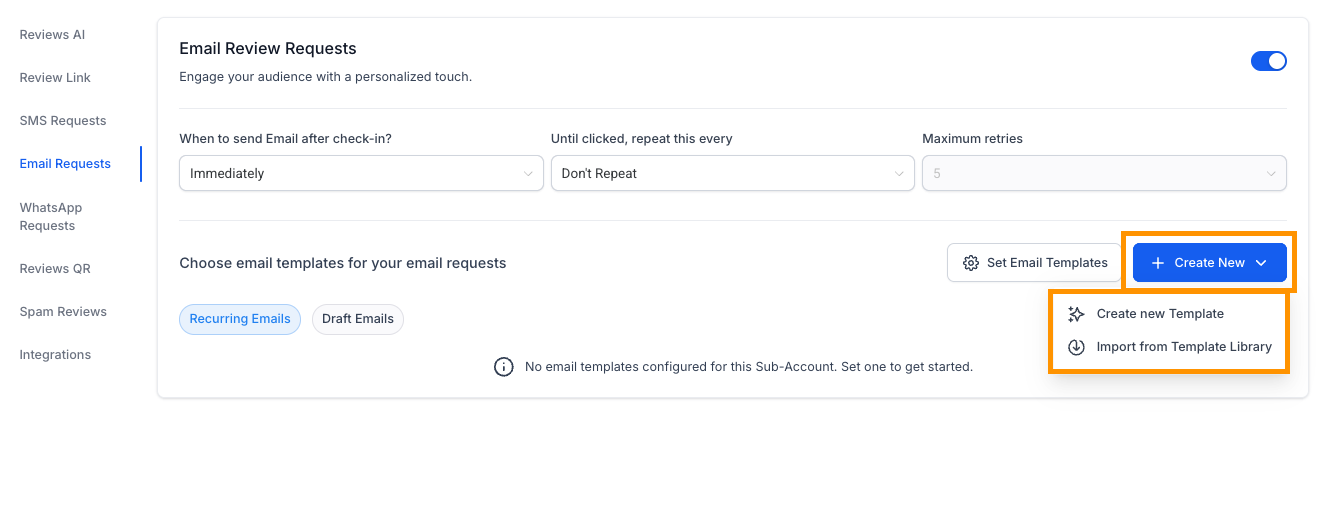
Click Create New → Create new Template or Import from Template Library.
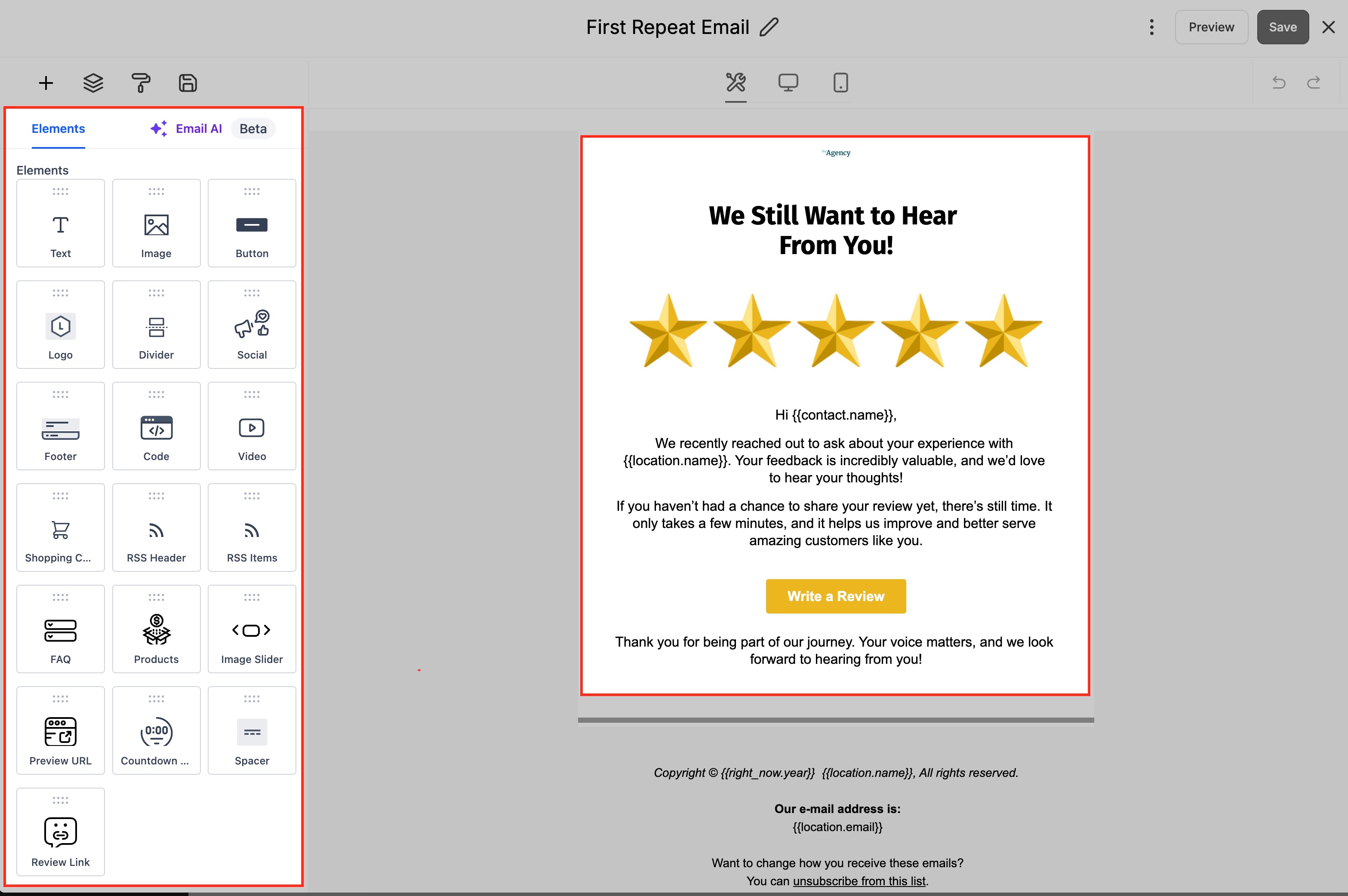
In the email builder, add your branding and content.
Drag the Review Link element into the email (or configure the primary CTA button to use the Review Link).
Save the template.
Select the Live & Retry Templates (Sequence)
Turning on SMS/Email requests isn’t enough—you must also tell TheraSaaS which template to use for the initial send and for each retry slot. This selection controls exactly what customers receive at each step.
- For Email: Click Set Email Templates, select the Live template and assign templates to each Retry slot, then Save.
- For SMS: Click Set SMS Templates, then select your Live/Retry templates and Save.
How To Setup Review Request Messaging (Step‑by‑Step)
Set Review Link
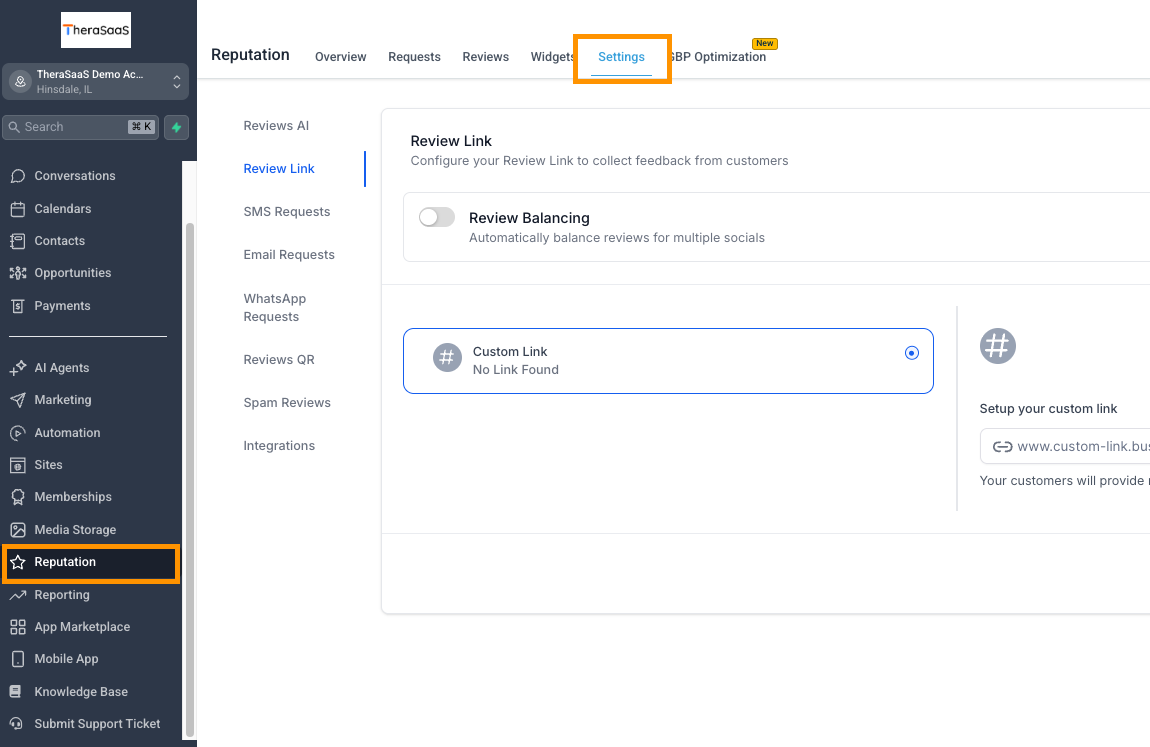
From the left sidebar, click Reputation, then open the Settings tab at the top. In Review Link, either enable the Review Balancing toggle or select the Custom Link radio and paste your URL in Setup your custom link.
Enable SMS Requests
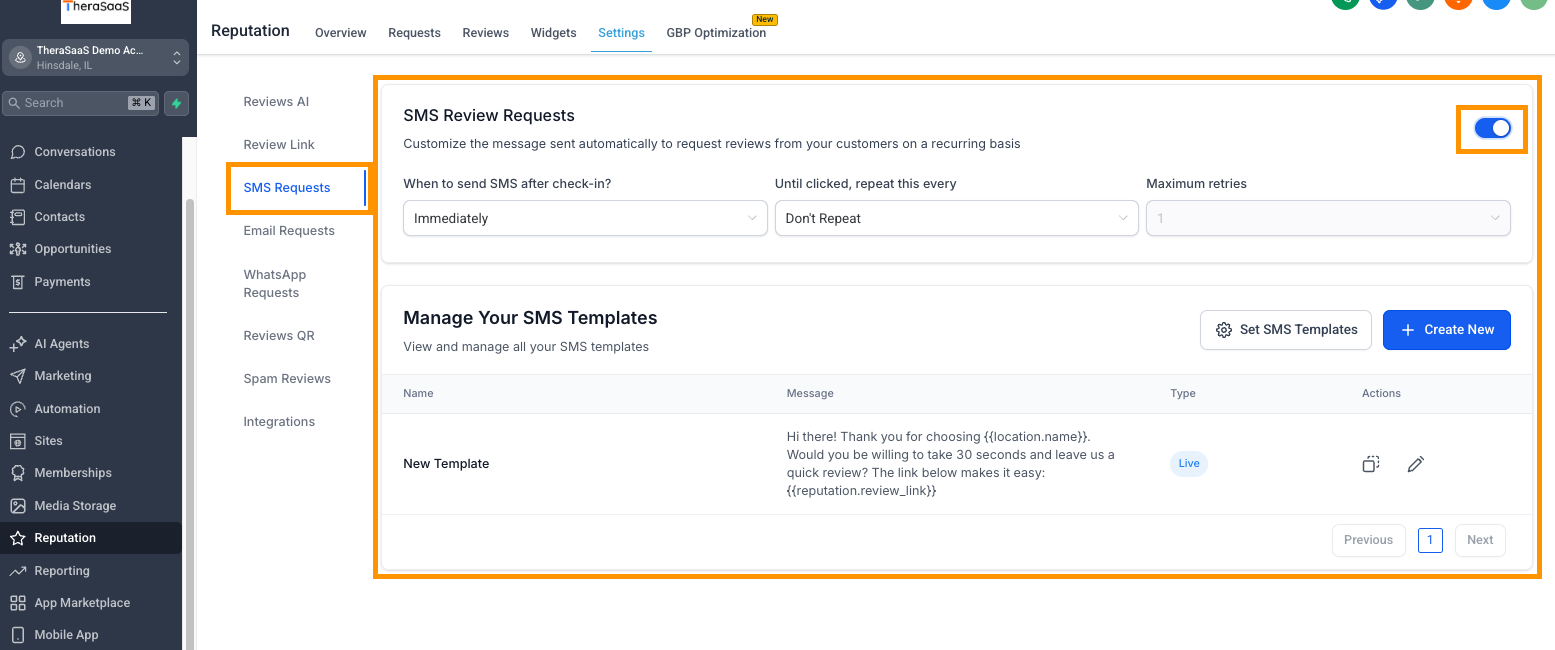
Open Reputation → Settings → SMS Requests and toggle the switch in the top-right to activate automated review texts. Set When to send after check-in, choose the repeat interval and Maximum retries, then use Create New or Set SMS Templates to manage the messages shown below.
Add SMS Template
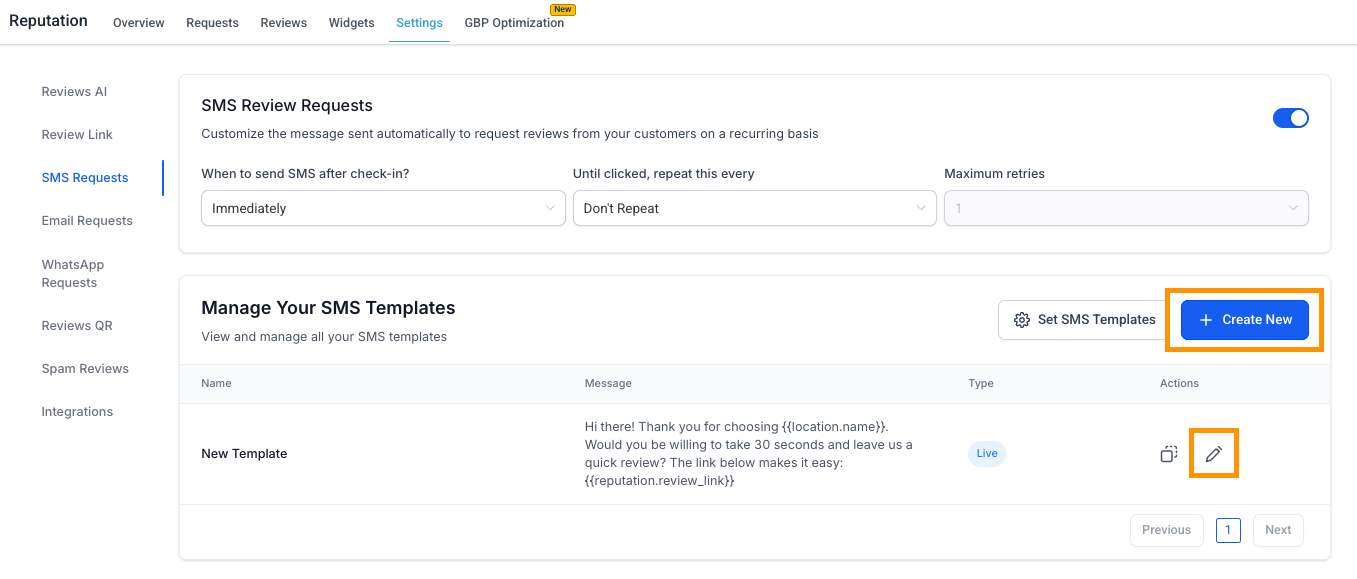
Click Create New to build a new SMS review request, or use the pencil (edit) icon to modify the selected template. Templates you create or edit here will appear in the list and can be assigned to the live or retry sequence later.
Choose Template Type
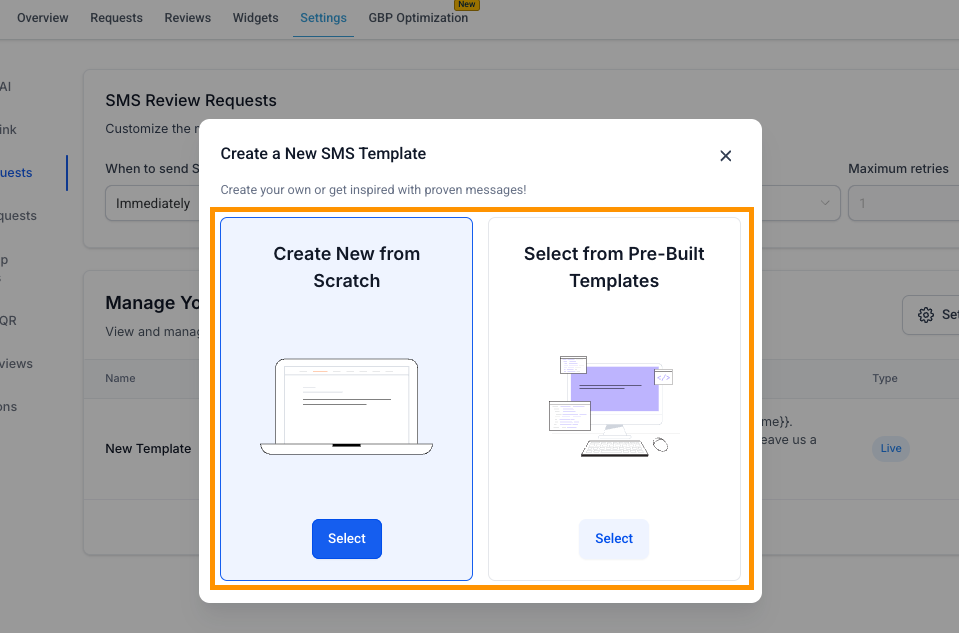
After clicking Create New, pick how you want to start: Create New from Scratch or Select from Pre-Built Templates. Click Select under your preferred option—start blank for full control or use a proven template to move faster.
Choose Prebuilt
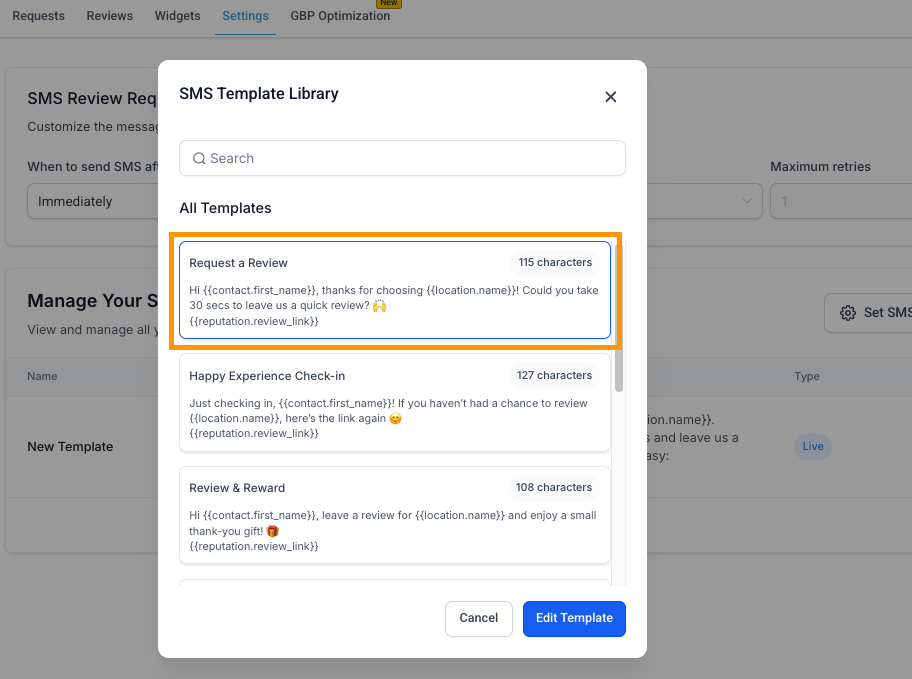
From the SMS Template Library, select a pre-built option such as Request a Review (note the visible character count for reference). Click Edit Template to open it for customization, where you can adjust copy and keep the {{reputation.review_link}} token.
Customize SMS Template
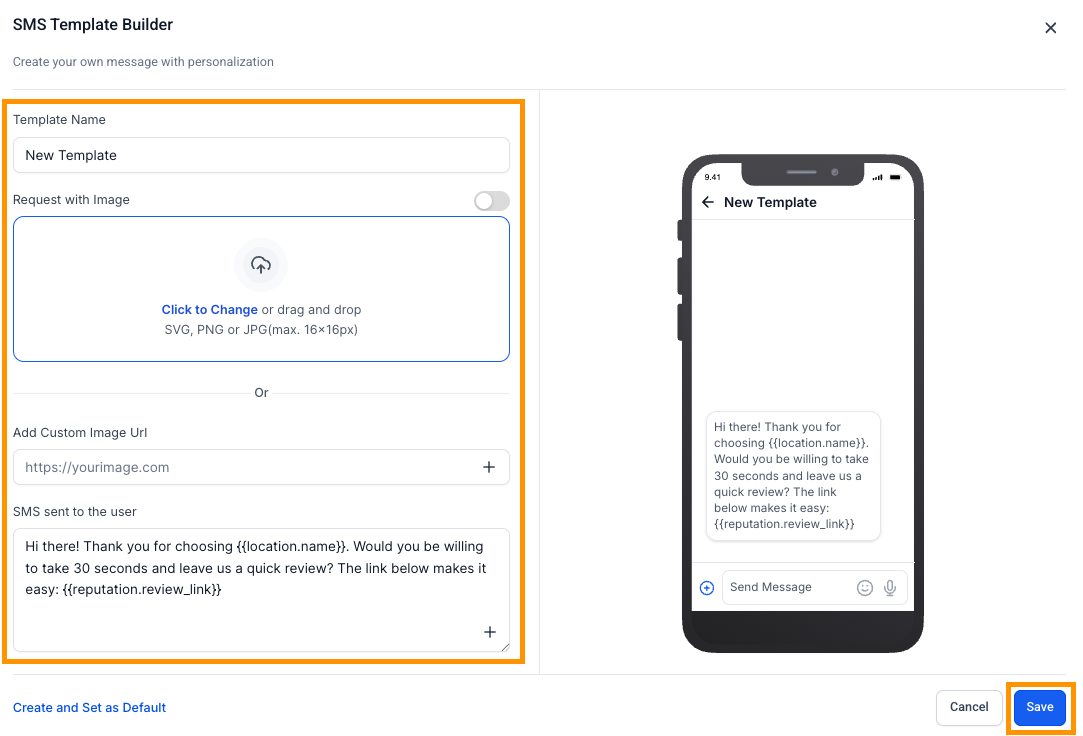
Enter a Template Name, optionally enable Request with Image to upload or link an image, and write your message using {{reputation.review_link}}. Check the live phone preview on the right, then click Save to store the template.
Enable Email Requests
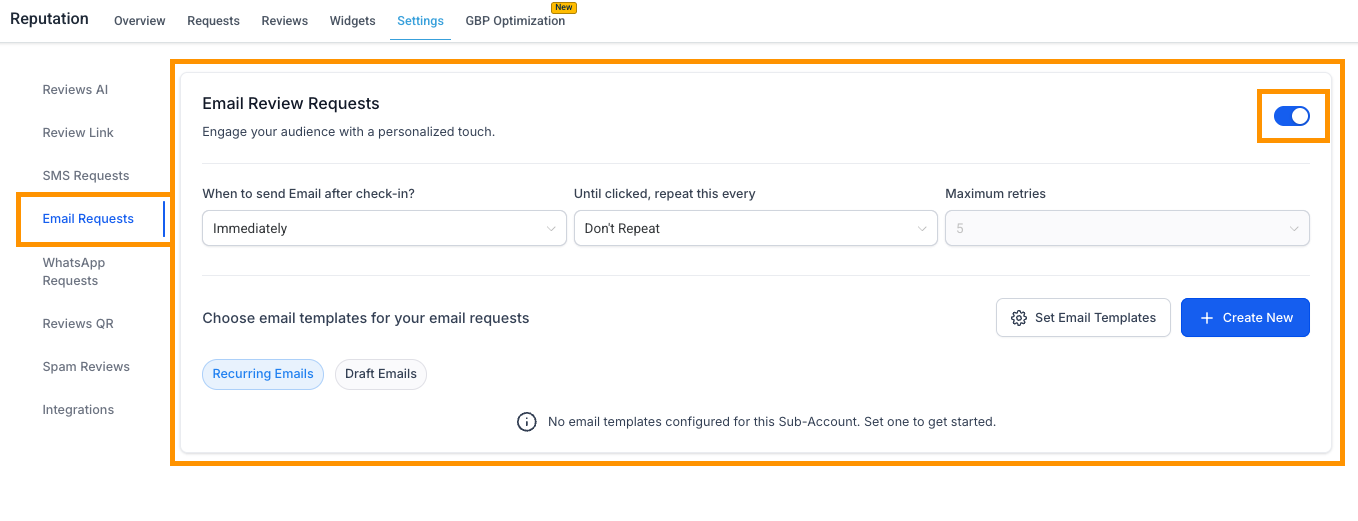
Open Reputation → Settings → Email Requests and turn on the toggle in the top-right to activate automated review emails. Use the controls to set when to send after check-in, the repeat interval until clicked, and the maximum retries, then manage templates via Set Email Templates or Create New.
Assign Email Sequence
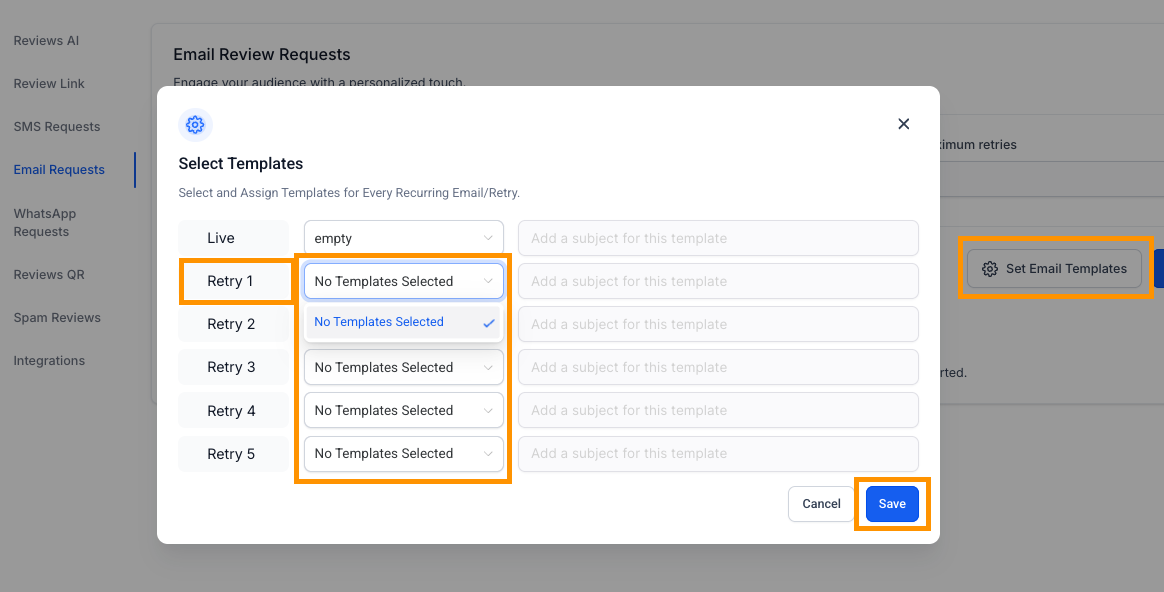
Click Set Email Templates to choose which template sends first (Live) and which ones power each Retry slot from the left-side dropdowns. Review or edit the subjects on the right if needed, then click Save to apply the sequence.
Create/Import Email
Use Create New (dropdown) to Create new Template or Import from Template Library for your email request. To modify an existing design, click the ⋯ menu on a template card and choose Edit Templates; you’ll assign these later via Set Email Templates.
Design Email Content
Use the drag-and-drop email builder to add text, images, and buttons from the Elements panel on the left. Drag the Review Link element (bottom-left) into your layout so the CTA opens your configured review URL, then click Save in the top-right.
Where You Can Send Review Requests
Once your templates and cadence are configured, you can request reviews from several places in TheraSaaS. Use the method that best fits your team’s workflow.
- Reputation → Requests: Send and track requests in bulk or individually.
- Contact record: Open a contact and choose Send Review Request.
- Workflows: Use the Review Request action to automate sends based on triggers (e.g., after an appointment status change).
- Channels: SMS and Email are covered here; WhatsApp Requests are available in Reputation → Settings → WhatsApp Requests (configure separately if needed).
Was this article helpful?
That’s Great!
Thank you for your feedback
Sorry! We couldn't be helpful
Thank you for your feedback
Feedback sent
We appreciate your effort and will try to fix the article