Phone Tree (IVR System)

Modified on Thu, 25 Jun at 10:26 AM

       Build an Interactive Voice Response system to route callers to the right department or staff.

What this covers

An Interactive Voice Response (IVR) system improves call management by directing incoming calls to the appropriate department or staff member. This guide walks you through building an IVR phone tree in your TheraSaaS account.
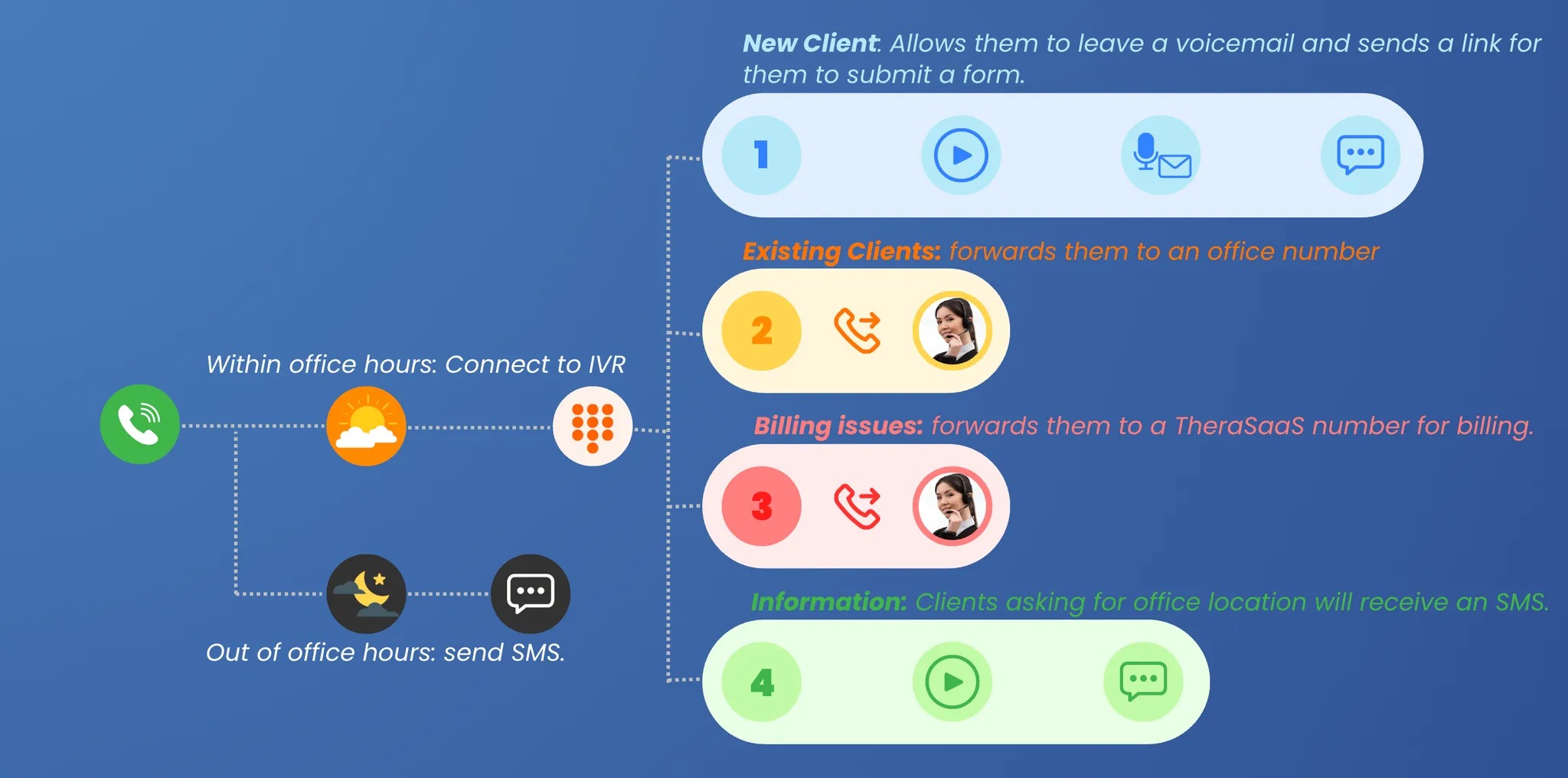
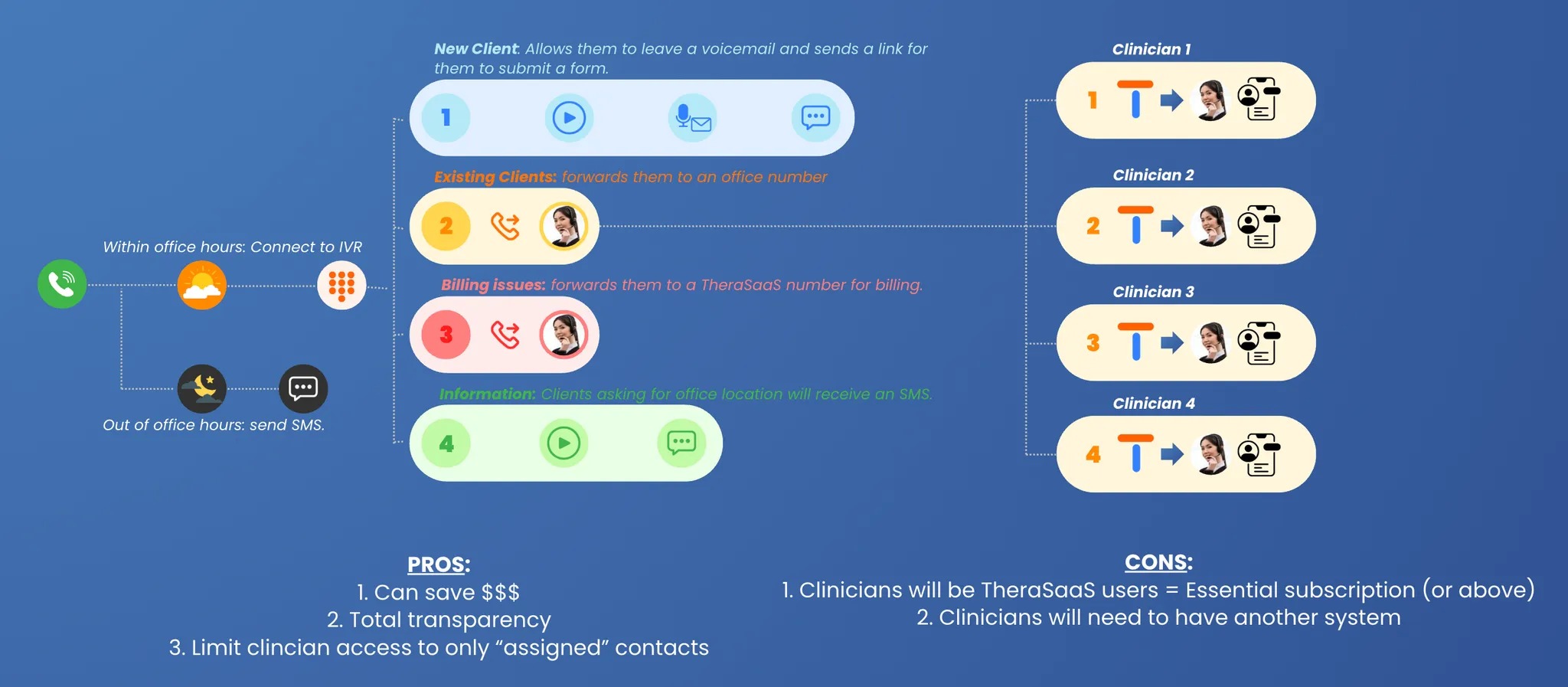
Example 1A simple phone tree that routes callers to a few core options.

Example 2Adding your whole clinical team to the TheraSaaS phone tree.

  • 1Access Automations and create a workflow
    Navigate to the Automations section and create a new Workflowfor the IVR. You have two options:
    • Select a pre-built IVR Recipe.
    • Start from scratch to fully customize your IVR system.
  • 2Configure the IVR system
    Set up the IVR trigger
    Add the IVR Triggerand choose the phone number that will receive incoming calls.
    Note

    Each IVR system must have a unique phone number assigned.

    Configure greeting and input options
    Add the Gather Input on Callaction and enter a greeting:
    Hello and thank you for calling [Practice Name]. Please choose from the following options:
    Then define the keypress options:
    1Reach a staff member
    2New client inquiries
    3Billing concerns
    You can also choose to use a robotic voice or upload a pre-recorded message, and set the message to loop.
    Define call routing based on input
    Use Match Conditionsto specify each keypress and create a branch for it — for example, one branch for new clients, another for existing clients, another for billing.
    Advanced input settings
    • Set a time limit for keypress input (e.g., 5 seconds).
    • Configure whether the system stops gathering input after a keypress.
  • 3Add additional options
    Sub-menu for new clients
    If new clients press 1, classify the call further:
    1Individual therapy
    2Children's therapy
    3Couples counseling
    0Return to the main menu
    Handle call forwarding
    Connect calls to the right department or staff — select a user within TheraSaaS or enter a custom phone number. Enable voicemail detection and call recording if needed.
    Play a message before forwarding
    Add a Play Messageaction before connecting the call:
    We will now connect you to our staff handling children's therapy inquiries. Please stay on the line.
    Handle unavailable services
    If a service isn't offered, play a message and send the caller back to the main menu:
    Unfortunately, we do not offer couples counseling at this time.
  • 4Finalize and test
    Review your setup to confirm all conditions and branches are correct, then test the IVR to verify:
    • Messages play correctly.
    • Calls route to the appropriate numbers.
    • The main menu functions as expected.
    When everything works, save and activate the workflow.
Best practice

Always include a "return to main menu" option (press 0) in sub-menus, and a fallback message for services you don't offer, so callers never hit a dead end.

Watch out for

Each IVR needs its own unique phone number. Test every branch end to end before activating — an unmapped keypress or wrong forwarding number drops the caller.


Was this article helpful?

That’s Great!

Thank you for your feedback

Sorry! We couldn't be helpful

Thank you for your feedback

Let us know how can we improve this article!

Select at least one of the reasons
CAPTCHA verification is required.

Feedback sent

We appreciate your effort and will try to fix the article