Using the Link Shortener in Social Planner
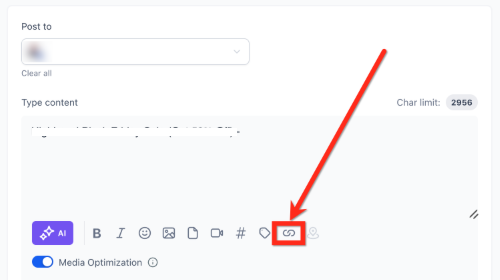
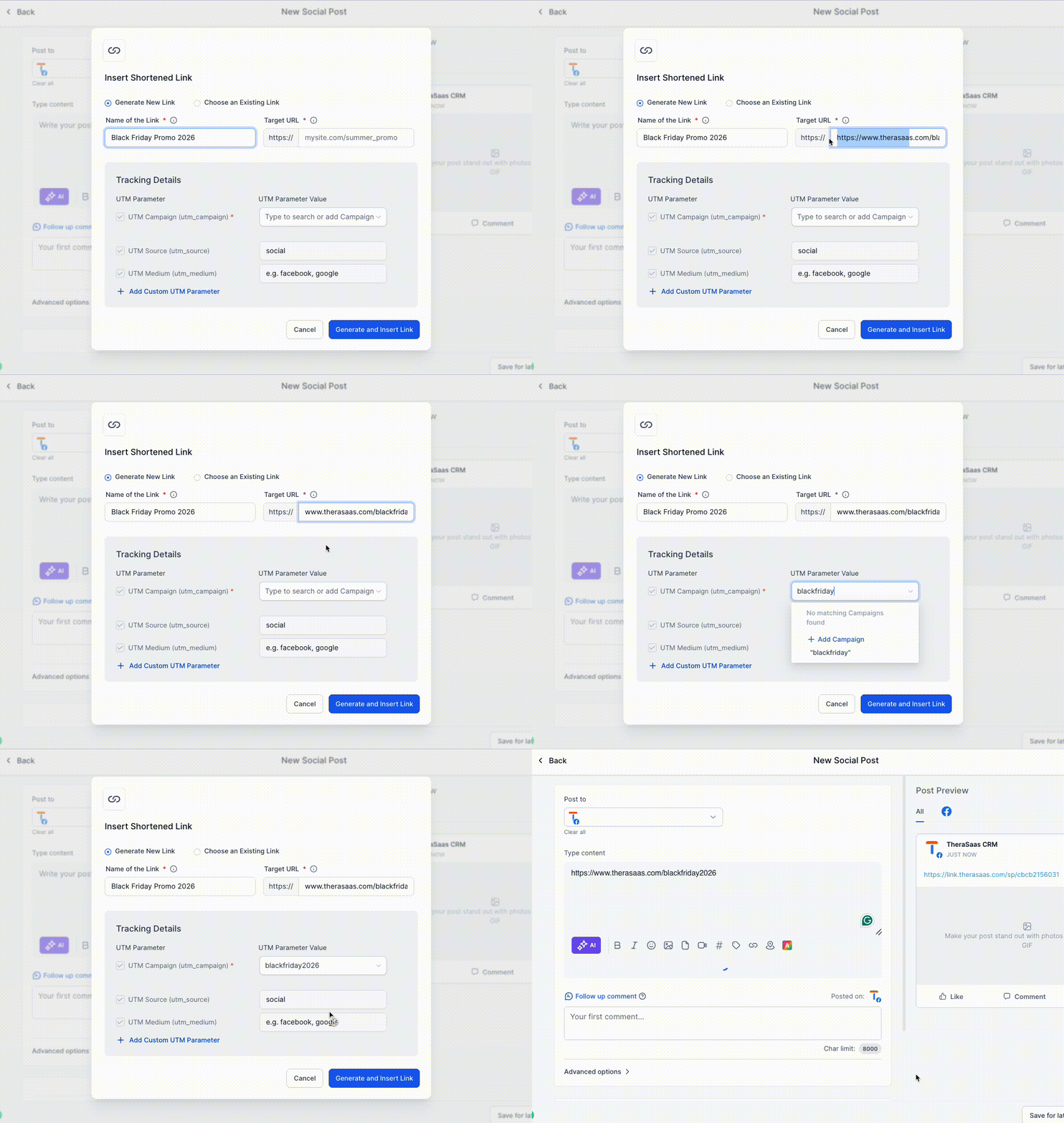
The Link Shortener is a built-in feature within Social Planner that automatically converts long, complex URLs into shorter, more manageable links in your post preview. The full URL stays visible in your content editor, while the shortened link is what displays in the live preview and the published post itself — helping keep social content clean when sharing blogs, landing pages, or external websites.
Keeps social posts uncluttered by shortening long URLs.
Improves user experience with concise, easy-to-read links.
Automatically generates a shortened version of any long URL.
Shows how the final post will look with the shortened link.
Works across all connected social platforms in Social Planner.
Social Planner also provides link-level performance analytics directly inside the Statistics page — so beyond shortening links inside your posts, you can track how those links perform after publishing. The Link Shortener continues to shorten long URLs in your post preview and final published post, and with URL Tracking:
Every URL you share through Social Planner is measurable. You can track:
- Total clicks on each shortened or original URL
- Platform-wise performance (Facebook, Instagram, LinkedIn, etc.)
- Trends over time
When composing a post, you can assign a Campaign Name to your link. All posts using that same link and campaign are grouped together in analytics, helping you compare performance across posts and channels.
Inside Marketing → Social Planner → Statistics → URL Tracking, you can filter for top-performing and low-performing links.
Selecting any URL shows a preview panel so you can see exactly which link you're analyzing.
Note: only the link created via Social Planner will be displayed on the statistics page.
- You don't need to manually shorten links — the icon handles it for you
- Click tracking now starts automatically as soon as a post goes live
- Use consistent Campaign Names to compare link performance across posts
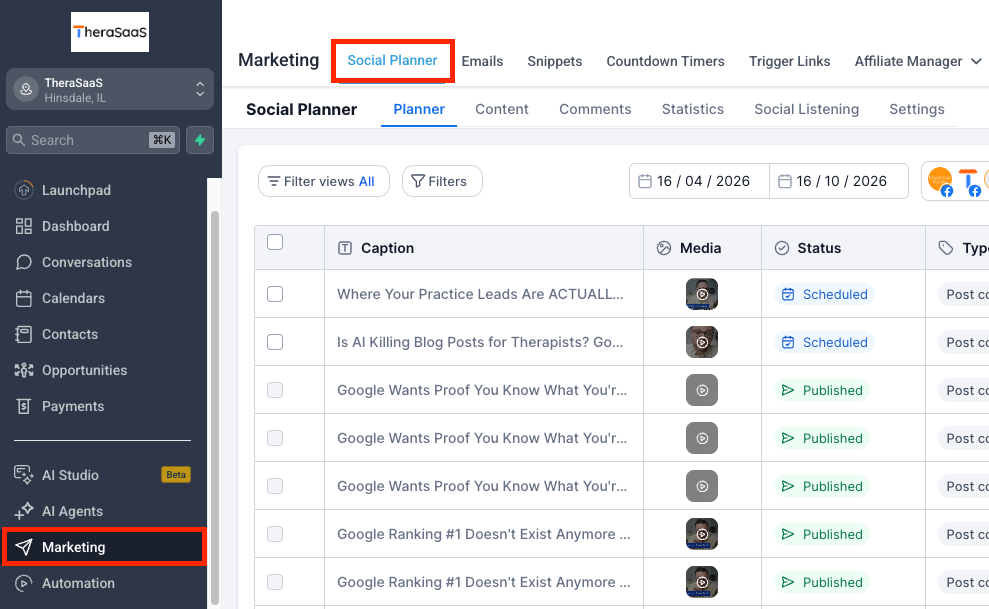
Shorten links from the post composer under Marketing → Social Planner. View performance under Marketing → Social Planner → Statistics → URL Tracking.
Was this article helpful?
That’s Great!
Thank you for your feedback
Sorry! We couldn't be helpful
Thank you for your feedback
Feedback sent
We appreciate your effort and will try to fix the article