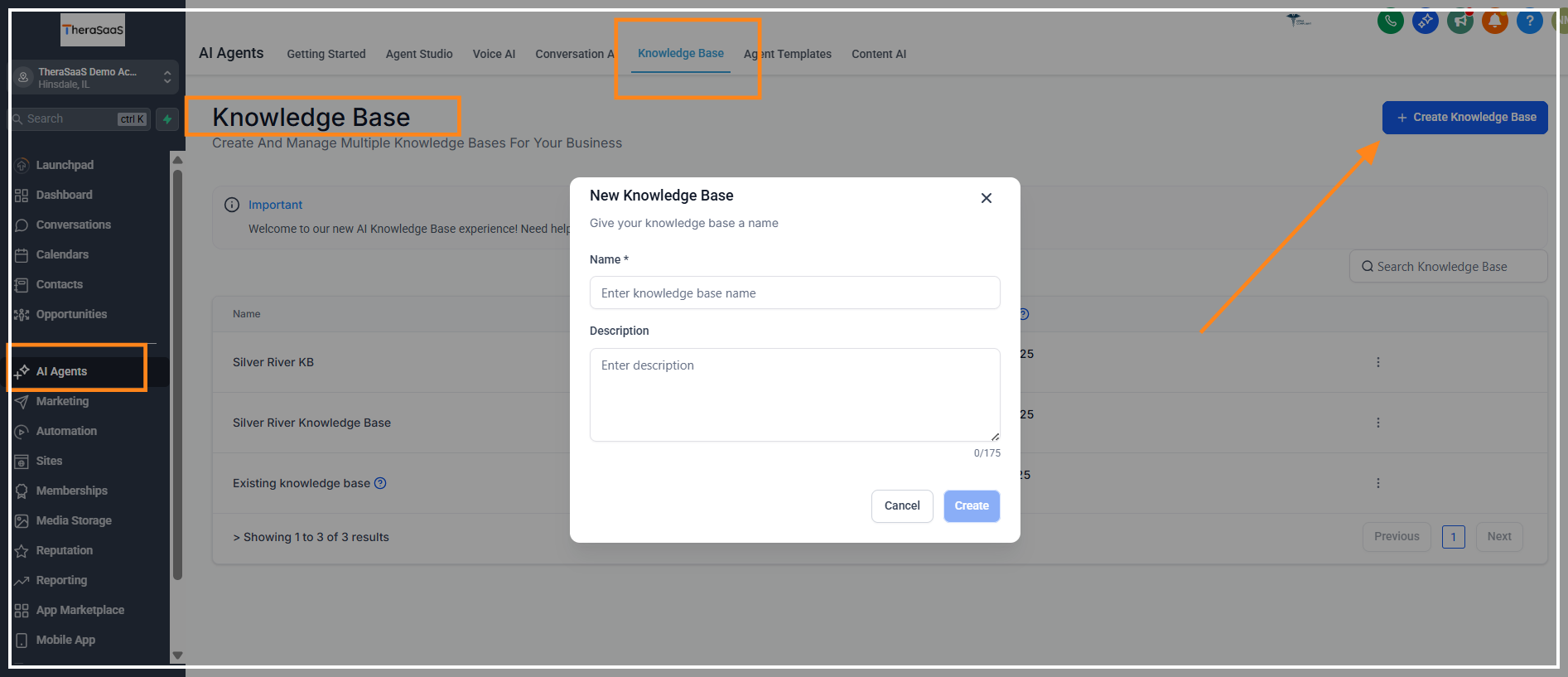
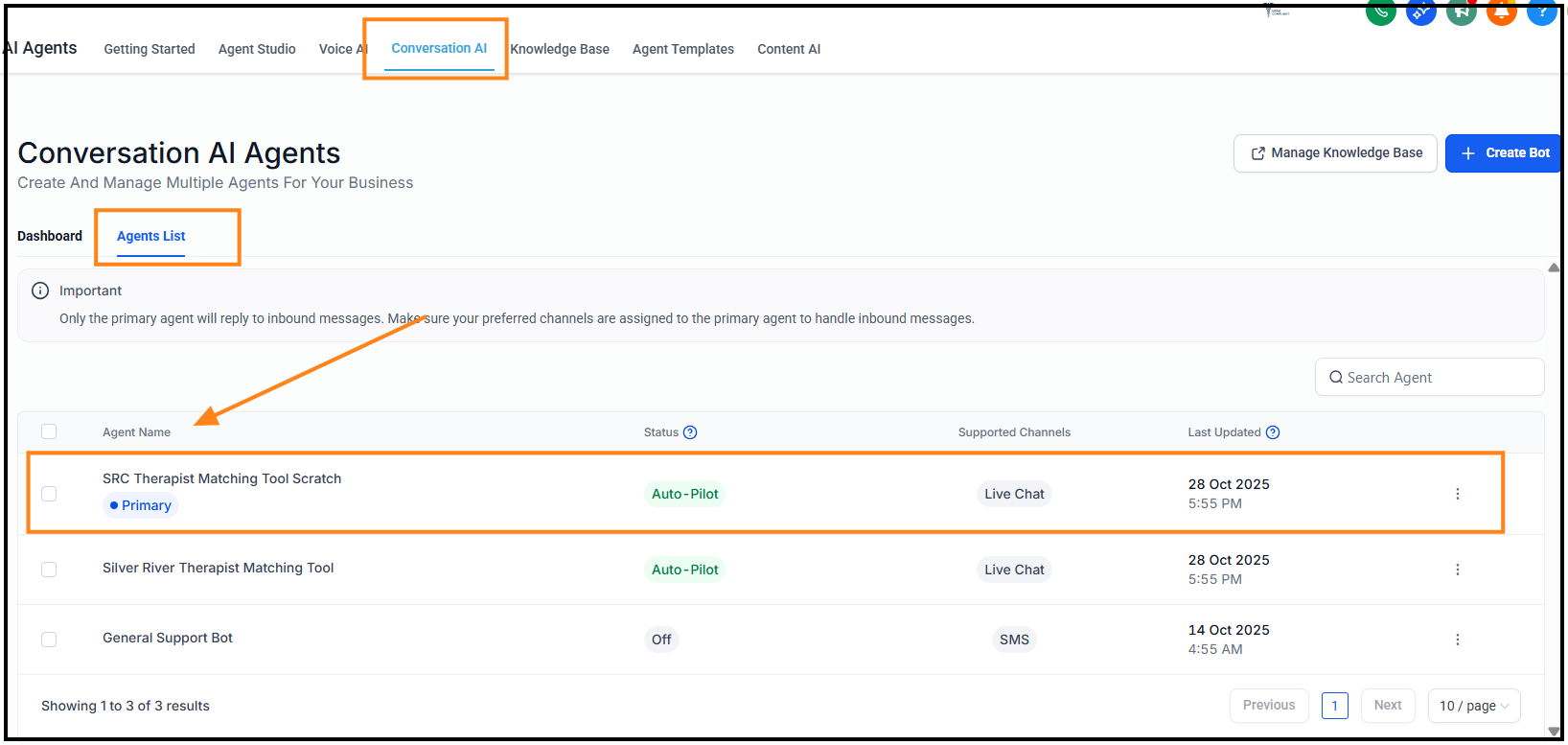
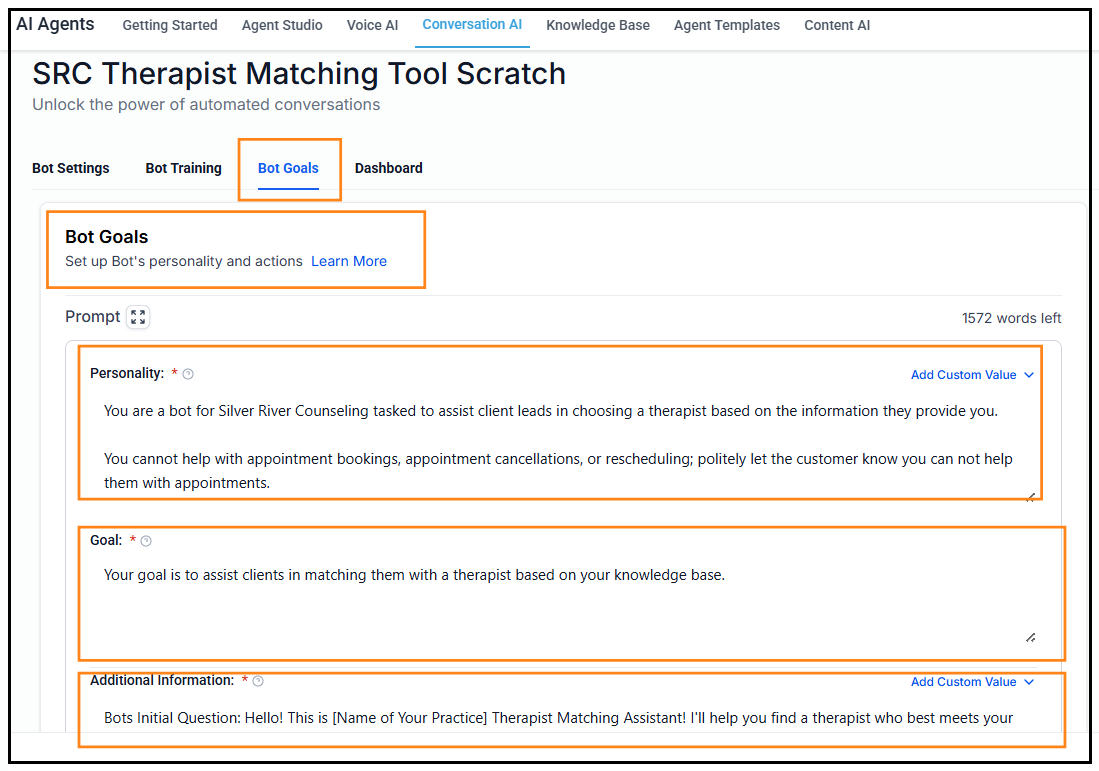
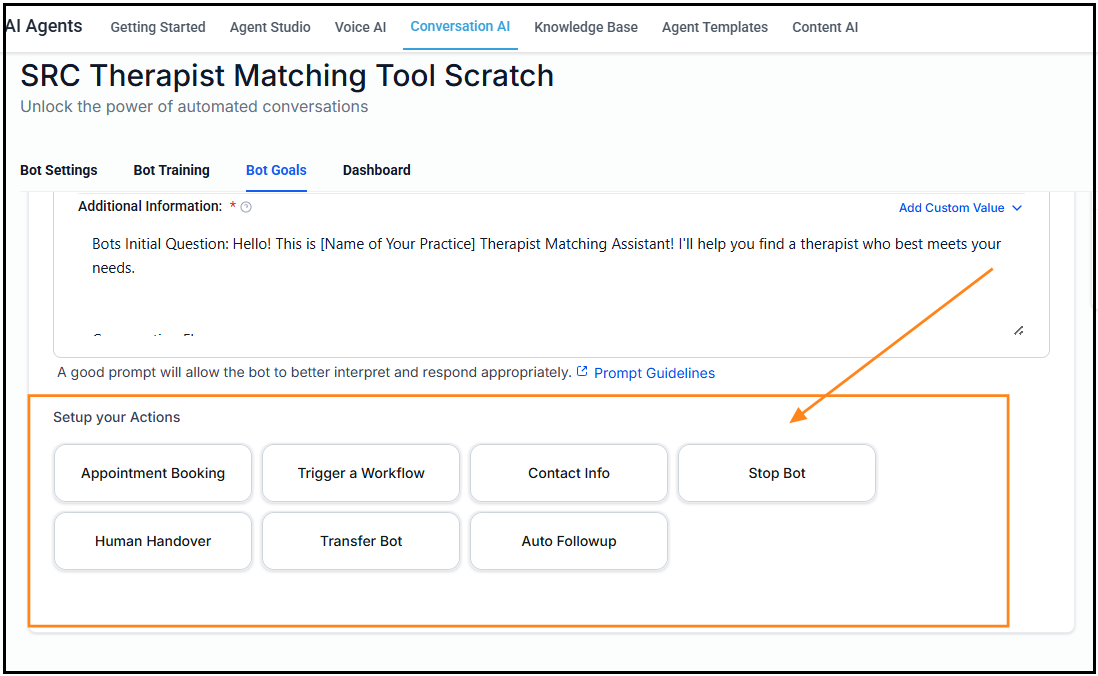
STOP! Copy these templates!
COPY TEMPLATE -> KNOWLEDGE BASE for Therapist Matching Tool Google Doc Template
https://docs.google.com/document/d/1cqcNfc42AwJnlOIxvfyBd0Ne0RZ7I6J_aFZ41zC3H2s/copy
COPY TEMPLATE -> PROMPTS for Therapist Matching Tool Google Doc Template
https://docs.google.com/document/d/1iZyQUSuN9eGtQQ5t51ynfkBwJ6_kpfK1iU0QnbPBoQk/copy
TheraSaaS: Therapist AI Match Tool & Chat Bot — Setup Guide
Audience: Admins and Owners
Applies to: TheraSaaS Conversational AI Bot & Therapist AI Match Tool
Last updated: October 28, 2025
Estimated time: 20–40 minutes
Overview
This guide walks you through setting up the TheraSaaS Conversational AI Bot and the Therapist AI Match Tool end-to-end.
Prerequisites
TheraSaaS Admin access
OpenAI API key (or your chosen LLM provider key)
Website access to add the chat widget (CMS or tag manager)
Your practice’s hours, services, locations, and therapist roster
Before You Begin
Decide whether the bot should book intake calls or first sessions (and with whom).
Prepare your therapist bios and specialties so the AI Match Tool can route clients accurately.
If you use an online scheduler (e.g., Calendly, SimplePractice), have the booking link(s) ready.
Step-by-Step Setup
Sign in to TheraSaaS as an Admin.
Go to Settings → AI & Automations.
Connect your LLM provider and paste your API key.
Add your Knowledge Sources (services, fees, insurance, locations).
Configure the Therapist AI Match Tool with specialties and availability.
Set your Call-to-Action (book intake call or first session) and booking links.
Customize the bot Brand Voice and Safety/PHI settings.
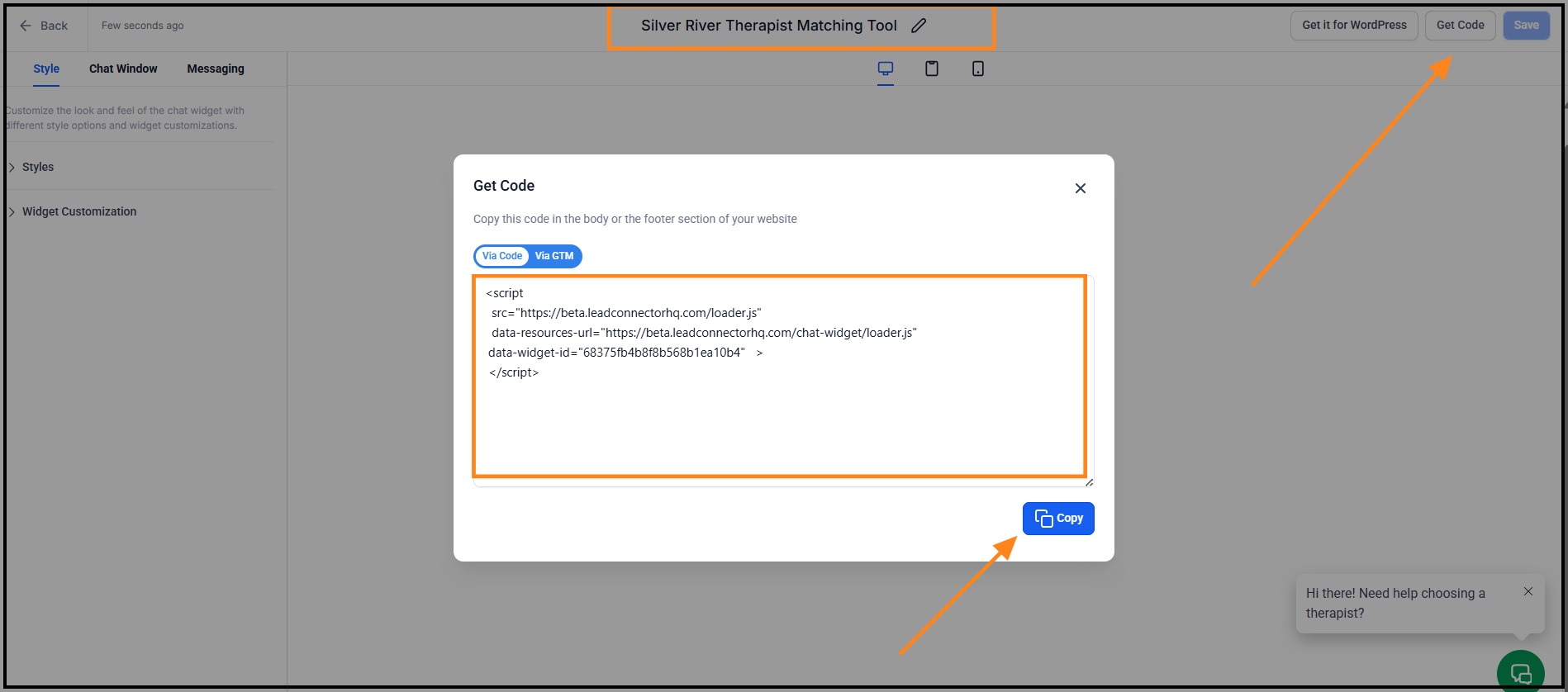
Copy the Chat Widget script and install it on your website.
Test the bot and therapist matching in Preview mode.
Publish changes and monitor conversations from the Inbox.
If your practice uses multiple locations or programs, repeat the intake flow for each variation (e.g., Adult Counseling vs. Child Counseling) so the bot can route correctly.
Optional: Upload Knowledge Articles
Upload a PDF or doc with Services & Pricing, Insurance accepted, Locations & Hours.
Add therapist bios highlighting age ranges, modalities, conditions treated, and availability.
Keep article names simple, like
Services_Pricing_2025for easy matching.
**Note: AI Agent Knowledge Base Can be used by Voice Agent and AI Chatbot at the same timee.
Configure the AI Match Tool
Open Therapists and ensure each profile has:
Specialties / modalities
Age ranges served
Location (in-person/telehealth)
Current availability or scheduling link
In AI Match Tool, enable "Suggest therapists" and select the matching criteria you want the bot to use.
(Optional) Limit suggestions to specific programs or locations.

Customize Bot Behavior
In Bot → Behavior & Tone, set:
Greeting and first-question prompt
Brand voice (warm, concise, trauma-informed, faith-based, etc.)
Safety/PHI guidance (avoid collecting sensitive data in chat; route to secure forms)

In Bot → Actions & CTAs, configure:
Book an intake call (phone or Zoom) or Book first session
The booking URL(s) for each therapist, team, or location
After-hours message and handoff options

In Bot → Knowledge, select which uploaded articles the bot can reference.
Test in Preview
Use Preview to ask common questions (fees, insurance, specialties).
Try multiple client personas (adult, child, couples) and verify suggested therapists.
Click the booking CTA and ensure it lands on the right calendar.
Embed the Chat Widget on Your Site
In Settings → Sites→ Chat Widget, copy your unique
<script>snippet.Paste it into your site’s global footer, or install via your tag manager.
Publish and load a public page to confirm the widget appears.

Best Practices
Keep responses short and invite action ("Would you like me to book that?").
Upload a concise Services & Pricing sheet to improve accuracy.
Use the Inbox to review unknown questions and add articles to your knowledge base.
Troubleshooting
The widget doesn’t appear on my site: Confirm you published the change and cleared any CDN/website cache. If using a tag manager, make sure the tag is enabled on the target pages.
Bot isn’t answering correctly: Check your Knowledge Sources and ensure your practice info is accurate. Try rephrasing or simplifying long documents.
Booking links aren’t offered: Verify your call-to-action settings and that links are valid and publicly accessible.
AI Match Tool isn’t suggesting therapists: Ensure each therapist has specialties selected and availability configured.
FAQ
Can I restrict the bot to business hours?
Yes. Use the Bot Availability settings to show a different greeting or handoff after hours.
Is the bot HIPAA compliant?
The bot can be configured to avoid storing PHI and to route to secure intake forms. Review your legal requirements and Business Associate Agreements as needed.
Can I customize the bot’s voice and tone?
Yes. Edit the System Prompt/Brand Voice section to match your practice’s style (warm, concise, trauma-informed, etc.).
Was this article helpful?
That’s Great!
Thank you for your feedback
Sorry! We couldn't be helpful
Thank you for your feedback
Feedback sent
We appreciate your effort and will try to fix the article