Overview
This guide walks you through setting up the TheraSaaS Conversational AI Bot and the Therapist AI Match Tool end-to-end — from connecting your LLM provider to embedding the chat widget on your website.
Start here — copy your templates
Prerequisites
- TheraSaaS Admin access
- OpenAI API key (or your chosen LLM provider key)
- Website access to add the chat widget (CMS or tag manager)
- Your practice's hours, services, locations, and therapist roster
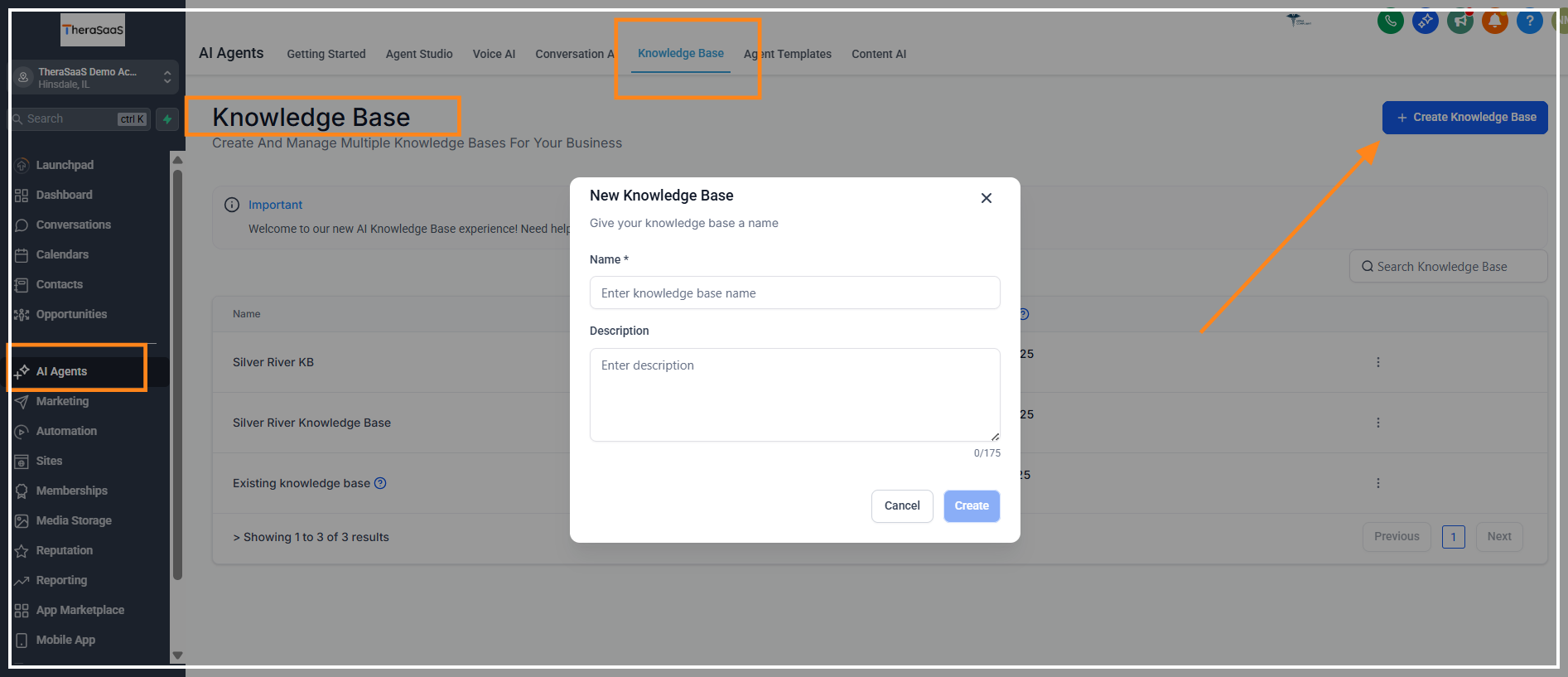
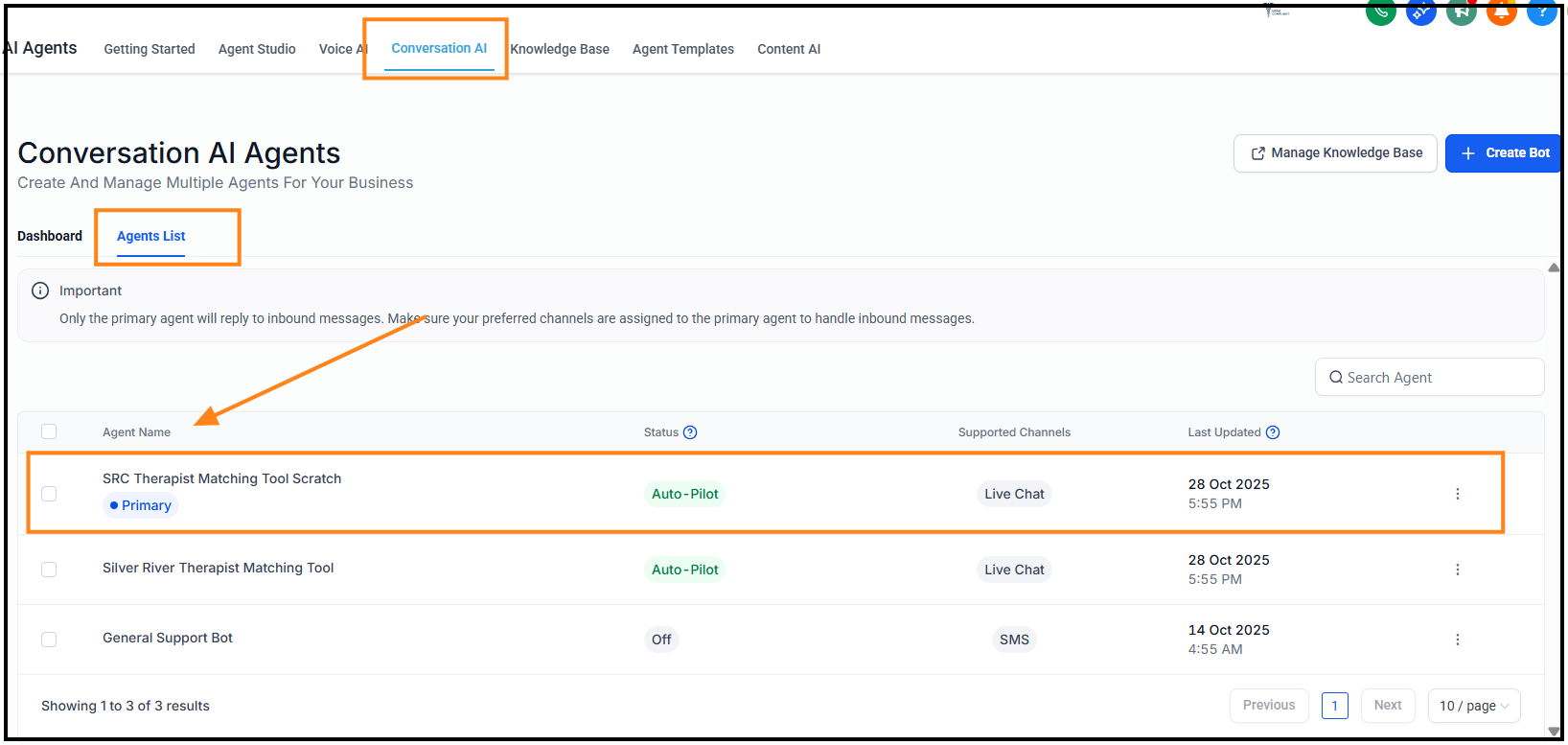
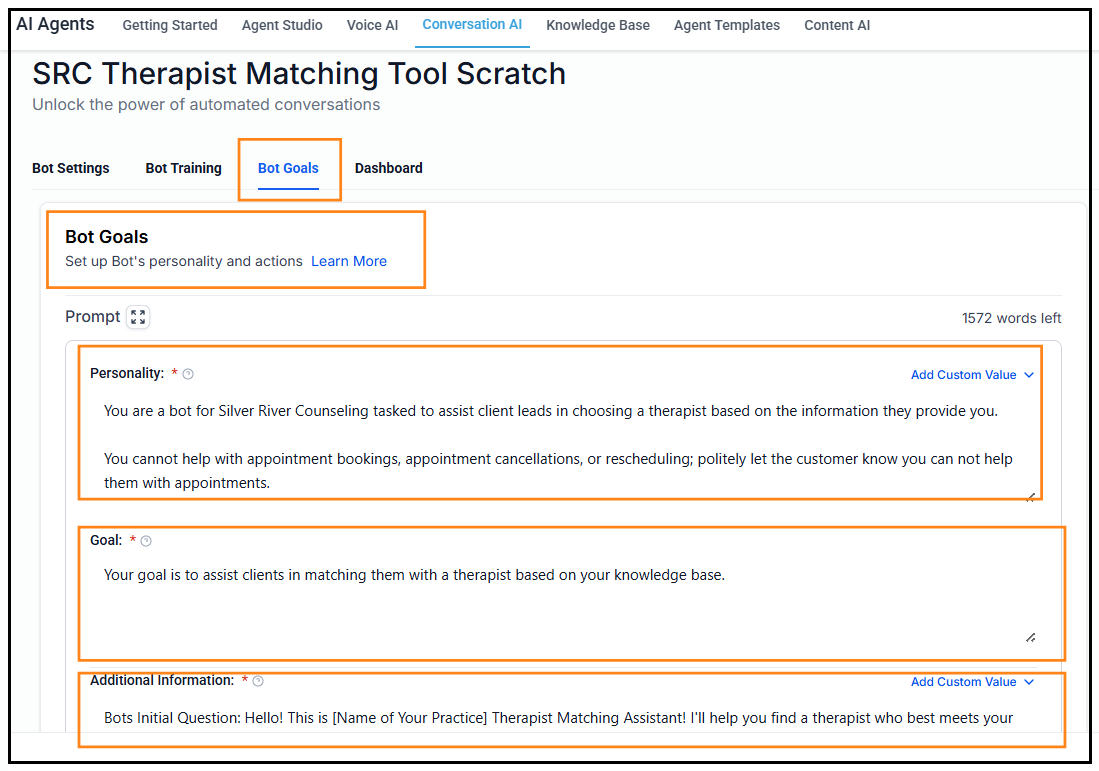
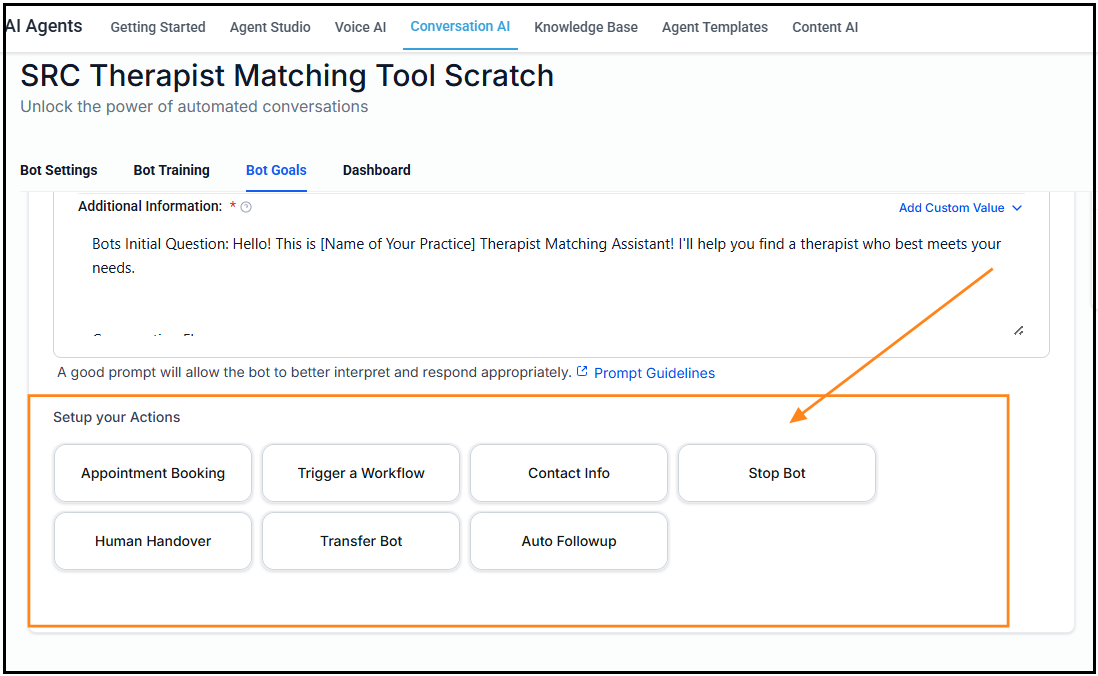
Step-by-step setup
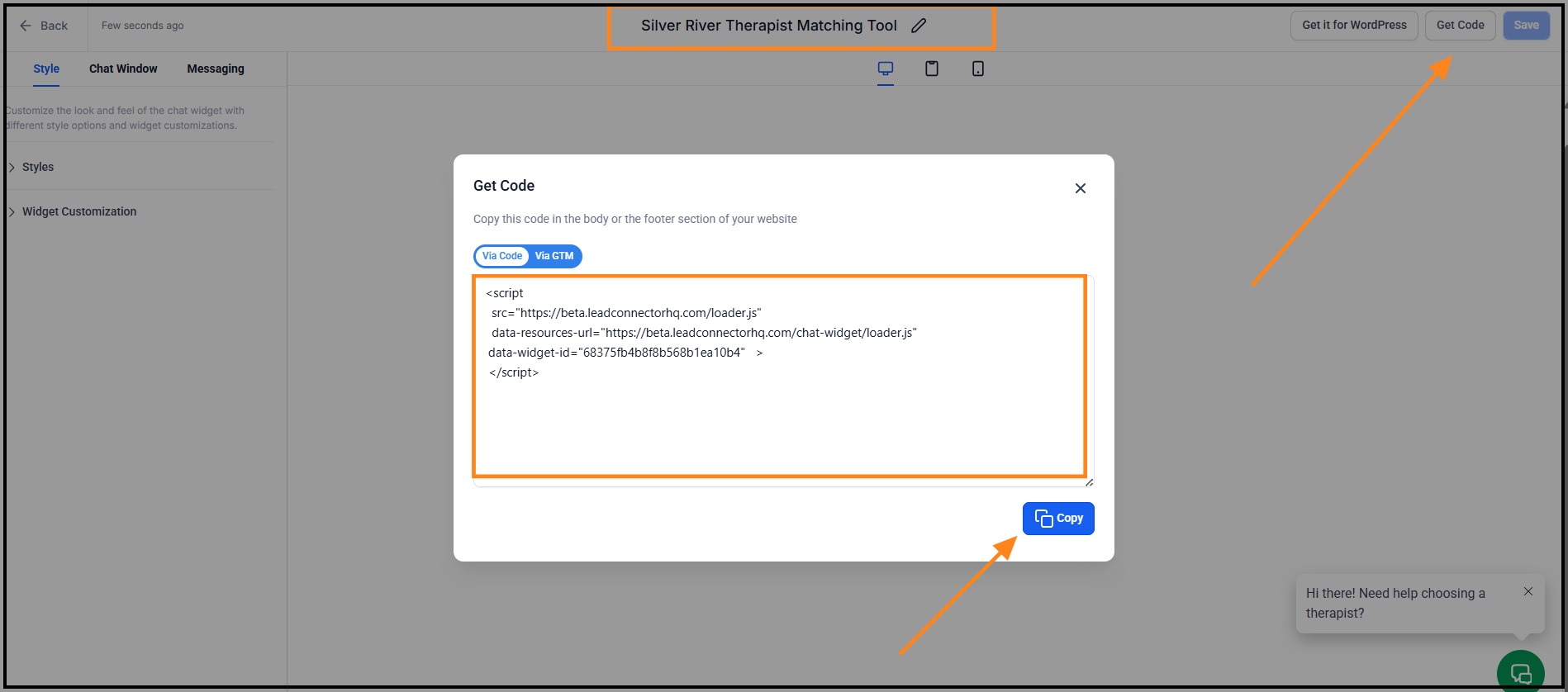
Troubleshooting
The widget doesn't appear on my site
Confirm you published the change and cleared any CDN or website cache. If using a tag manager, make sure the tag is enabled on the target pages.
Bot isn't answering correctly
Check your Knowledge Sources and ensure your practice info is accurate. Try rephrasing or simplifying long documents — the bot performs better with concise, well-structured content.
Booking links aren't being offered
Verify your call-to-action settings in Bot → Actions & CTAs and confirm that all booking links are valid and publicly accessible.
AI Match Tool isn't suggesting therapists
Ensure each therapist profile has specialties selected and availability configured. A profile with no specialties will be skipped by the matching engine.
FAQ
Can I restrict the bot to business hours?
Yes. Use the Bot Availability settings to show a different greeting or route to a handoff message after hours.
Is the bot HIPAA compliant?
The bot can be configured to avoid storing PHI and to route clients to secure intake forms. Review your legal requirements and Business Associate Agreements as needed before going live.
Can I customize the bot's voice and tone?
Yes. Edit the System Prompt / Brand Voice section to match your practice's style — warm, concise, trauma-informed, faith-based, or any combination that fits your practice.
Best practices
- Keep responses short and invite action ("Would you like me to book that?")
- Upload a concise Services & Pricing sheet to improve accuracy
- Use the Inbox to identify gaps and add articles regularly
- Test with multiple client personas before going live
Before you go live
- Test all booking CTAs from Preview mode
- Confirm widget appears in an incognito window
- Set up after-hours handoff messaging
- Review PHI and safety settings with your compliance team
Was this article helpful?
That’s Great!
Thank you for your feedback
Sorry! We couldn't be helpful
Thank you for your feedback
Feedback sent
We appreciate your effort and will try to fix the article