Show your own phone number on outbound calls instead of an unfamiliar platform number.
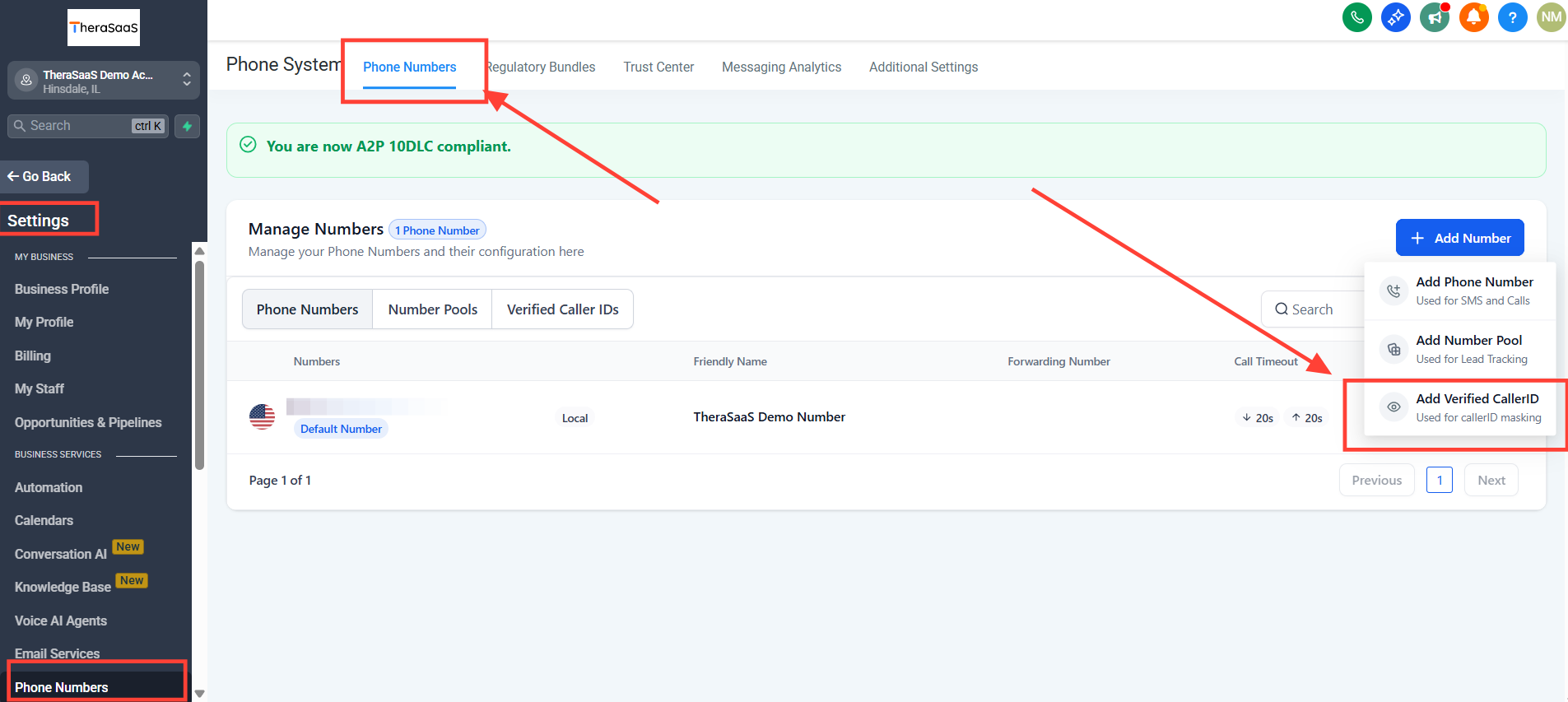
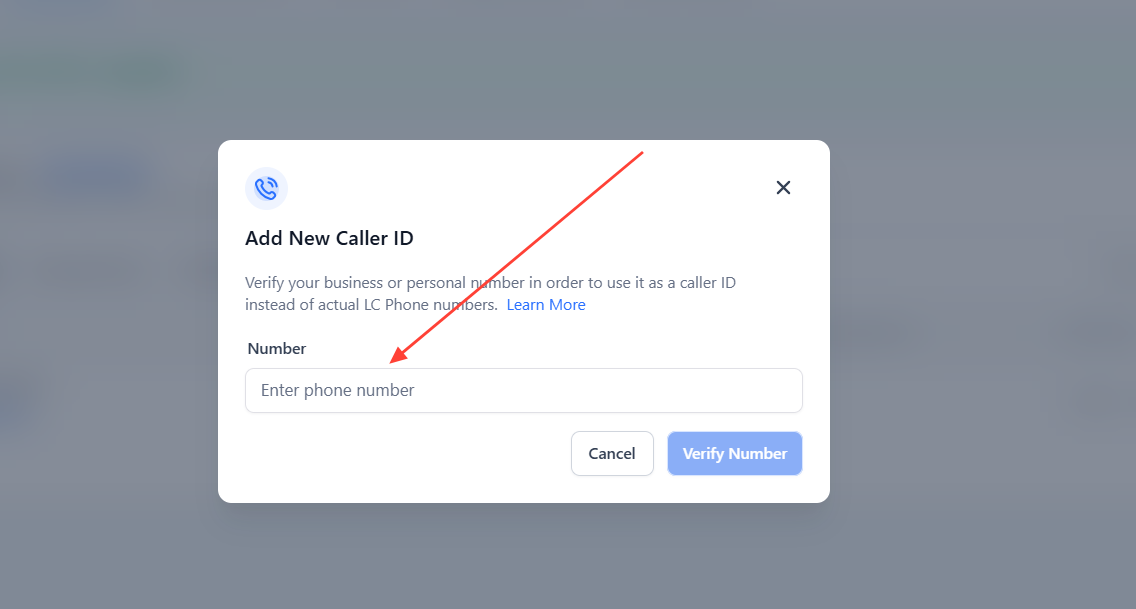
Verified Caller ID lets you display your personal or business phone number when making outbound calls through TheraSaaS. Instead of seeing an unfamiliar platform number, your contacts see your actual, verified number on their caller ID.
Contacts recognize your familiar number and are more likely to answer than ignore an unknown one.
Keeps your number consistent across channels, whether you call from your direct line or the platform.
People trust recognized numbers, reducing the chance your calls get marked as spam or ignored.
If someone misses your call, they call back your real number — not a system number that may not reach you.
In short, Verified Caller ID bridges the gap between modern calling platforms and the personal connection of your established phone number.
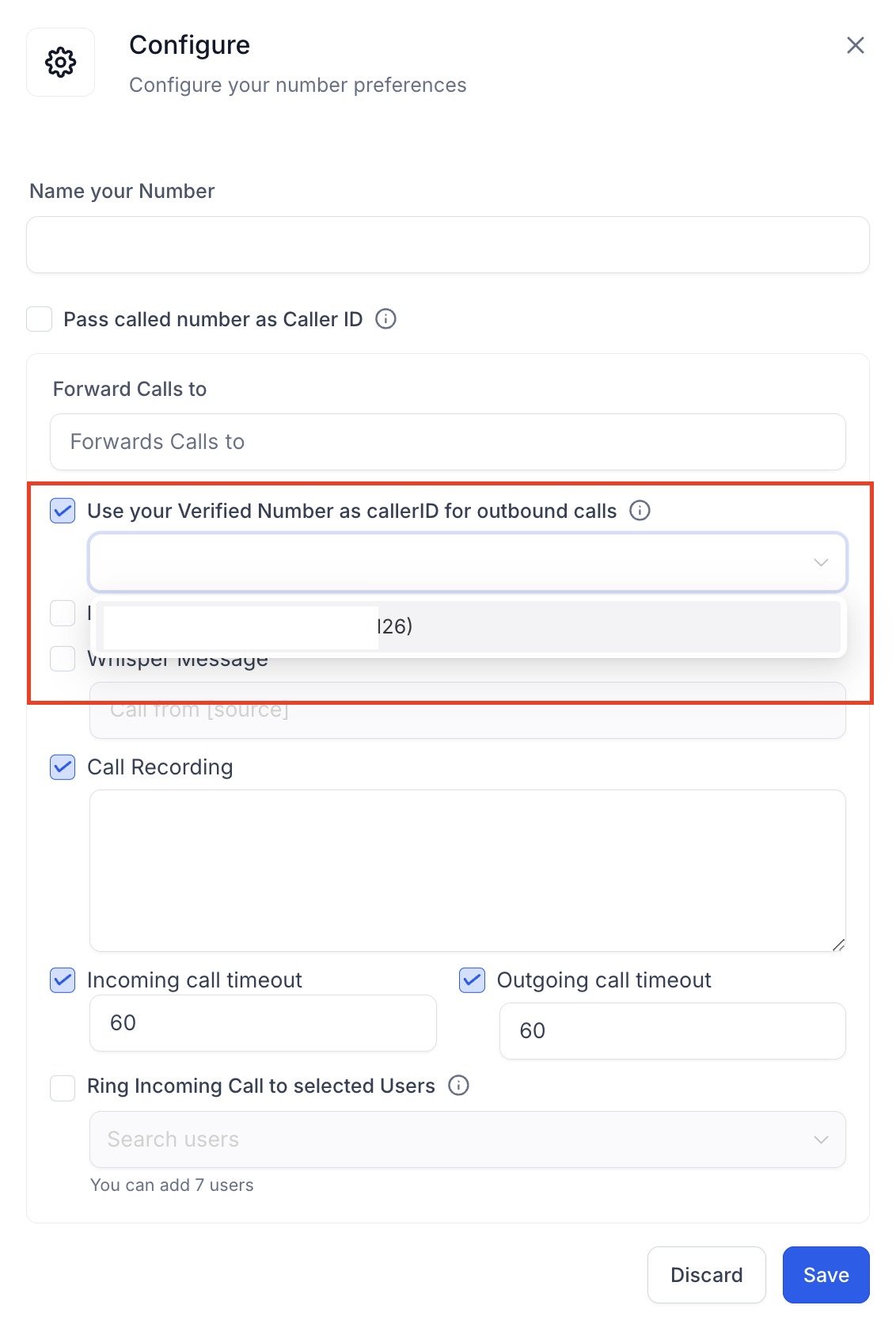
Verified Caller ID applies to calls only — it cannot be used for SMS.
Verify the number your clients already know so missed-call callbacks reach you directly and your answer rate stays high.
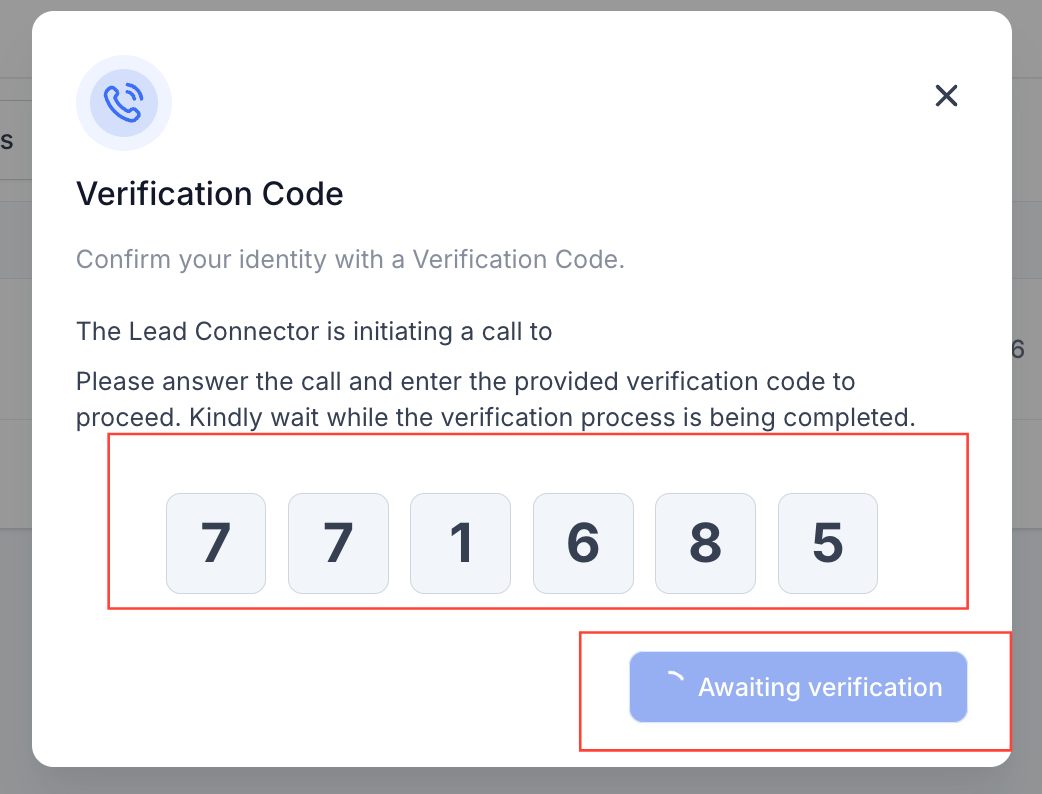
You must answer the verification call and enter the code to finish setup. The feature works for outbound calls only, not texts.
Was this article helpful?
That’s Great!
Thank you for your feedback
Sorry! We couldn't be helpful
Thank you for your feedback
Feedback sent
We appreciate your effort and will try to fix the article